
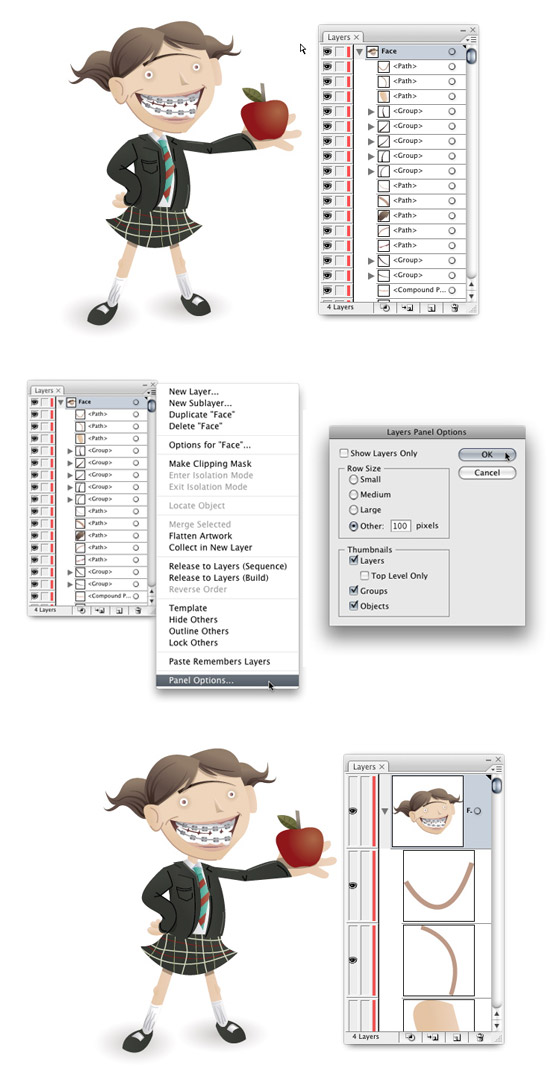
I use the Layers Panel all the time. The panel helps me navigate complicated illustrations and helps me find, select, and arrange objects. The Layers Panel is surprising customizable, adjusting to how you work. Creating large thumbnails adds to the functionality of the Layers Panel. Moreover, you can get rid of the thumbnails, or even keep thumbnails on the top layer only!
Notes
I’m pretty sure this feature is available in the other CS versions of Illustrator. If anyone knows otherwise, let me know!
Layer Panel Options
Open the pop-up menu of the Layers Panel and select Panel Options at the very bottom. Here, you can set the thumbnail size up to 100px or get rid of the thumbnails altogether. Check out some of the other options and customize the Layers Panel the way it works best for you!



Thanks so much for providing individuals with an exceptionally brilliant opportunity to discover important secrets from this site. It’s usually very pleasurable and as well , packed with amusement for me and my office mates to search your website at least thrice per week to read through the latest items you have. And of course, we’re usually astounded considering the special principles you serve. Certain 4 points in this posting are particularly the best we have all had.
Thanks a lot for providing individuals with a very special opportunity to check tips from this site. It is usually so beneficial and full of a good time for me personally and my office peers to search the blog at the very least three times a week to find out the fresh things you will have. And indeed, we’re at all times astounded considering the effective creative ideas you serve. Selected 4 ideas in this posting are definitely the most impressive we’ve had.
do you know of a way to set the default thumbnail size? because it’s ALWAYS the first thing i do in EVERY file. it gets pretty weak after the 1000th time…
utterly brilliant site, BTW. 😀
Unfortunately I don’t. I tried create a custom workspace and editing default Document Profiles with no luck, but I’ll look into it more.
“Maize, I’m going to start a tutorial soon!”
yup, a character tutorial would be mega awesome! but please, write about the creation of the guy on the header (don’t forget the glass table) 🙂
Nice tip! Thanks a bunch! I love tips about features in AI I would never think of..
woo!
Maize, I’m going to start a tutorial soon!
very usefull settings 😉
please can you write a tutorial, how you did this cute character ?
greets, maize
no way. thanks!!