
Sometimes I get very lazy, especially illustrating. I don’t want to draw things a couple of times to see if I like it. This happens all the time with the Star Tool. I usually have to draw the shape a few times to see how many points I like and see if the radius is the right size . Not any more! You just drag out the star shape, press a couple of buttons and you have a burst just the way you like it!
Notes
These tricks should be available from Illustrator 10 and up (actually I think that they are available in the lower versions as well, if anyone still uses them).
Arrow Keys
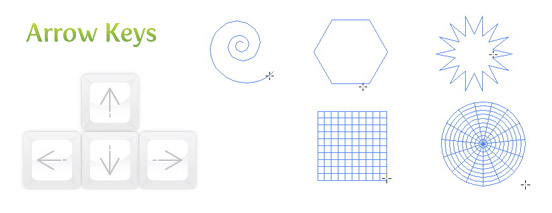
Arrow Keys will increase the points on the Star Tool and Polygon Tool. These keys will also add segments on the Spiral Tool and add columns and rows to the Rectangular Grid Tool and Polar Grid Tool.
Spacebar
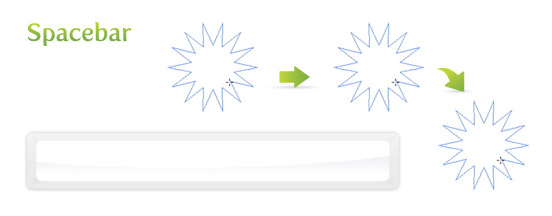
Holding the Spacebar while dragging will reposition the shape.
⌘ / Ctrl
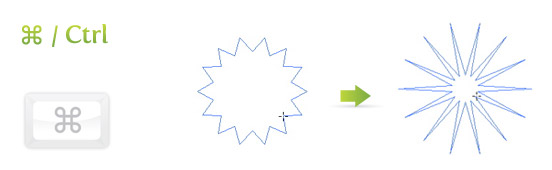
Holding the ⌘ / Ctrl Key while dragging will fix the inner radius of the Star Tool and add or subtract the decay in the Spiral Tool.
Tilde (~)
Holding the Tilde (~) while dragging will repeat the shape based on the length and speed of the drag.
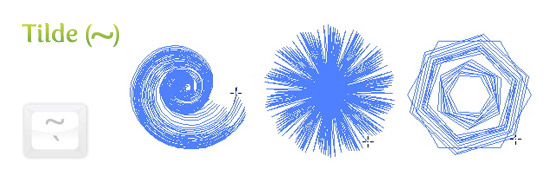
These are the ones I know about, I’m sure there is more. Let me know if I missed any!


Definitely believe that which you stated. Your favorite justification seemed to be on the net the simplest thing to be aware of. I say to you, I certainly get irked while people consider worries that they plainly do not know about. You managed to hit the nail upon the top as well as defined out the whole thing without having side effect , people can take a signal. Will likely be back to get more. Thanks
these are handy tips, greate for a newbie like me. thanks
All good but how on earth can you make these alterations AFTER you’ve drawn the star?? This is by far the most important thing. I need to start with a basic star and add points etc AFTER I have positioned it at my chosen size. It seems this is not possible. Everything must be done on ‘the fly’. Why can’t you simply go to the star’s editing box make the changes and bingo the SAME STAR is edited accordingly? Instead a new star is created. Can someone help?
First of all: This site is making my day – thanks!
On my german keyboard it’s not tilde but <. Try it together with shift – even more helpful!
Great tips but I can’t find how to do the tilde trick on a Portuguese keyboard. We realy use tilde when writing and it is not in the same position.
Any one knows were is the key to make the reapiting shape while draging?
Very useful tips. Thanks a lot.
On PC, you don’t have tu use the tilde, instead push % key to have same effect
Great tips! I will be putting these to use!
Wow that is a great one! I always had to go the filters or effects to change the corners. You just saved me some time.
Holding the up or down arrow while drawing a rounded rectangle lets you resize the corner radius. That’s a handy one.
And pressing left or right arrow minmizes (angular)/maximizes the radius…