

Well, it’s Blog Action Day 2009 today and the topic is Climate Change. So I decided to create a fun sun character tutorial. This intermediate tutorial is great for logos, children illustrations, and other projects relating to climate change. Moreover, you can easily apply this tutorial to other illustrations, logos, and projects!
Blog Action Day Day 2009: Climate Change
Climate change is an important issue that affects everyone on this planet. If you are reading this, you are probably a designer, illustrator, or involved in these industries in some way. Being part of these industries, we have a unique responsibility to visually communicate issues such as climate change. That makes it fun an easy to spread the word about climate change through artwork like in this tutorial. Even if you are not part of the design industry, you can learn more about climate change form the Blog Action Day site.

Final Image
Below is the final illustration we will be working towards.

Tutorial Details
- Program : Adobe Illustrator CS4 (tutorial can be completed with other version of Illustrator)
- Difficulty: Intermediate
- Estimated Completion Time: 30 minutes – 1 hour
Step 1
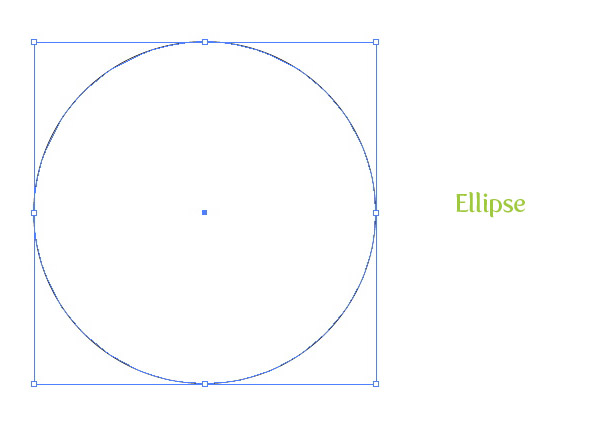
Create a new document and with the Ellipse tool (L), create an ellipse.
Step 2
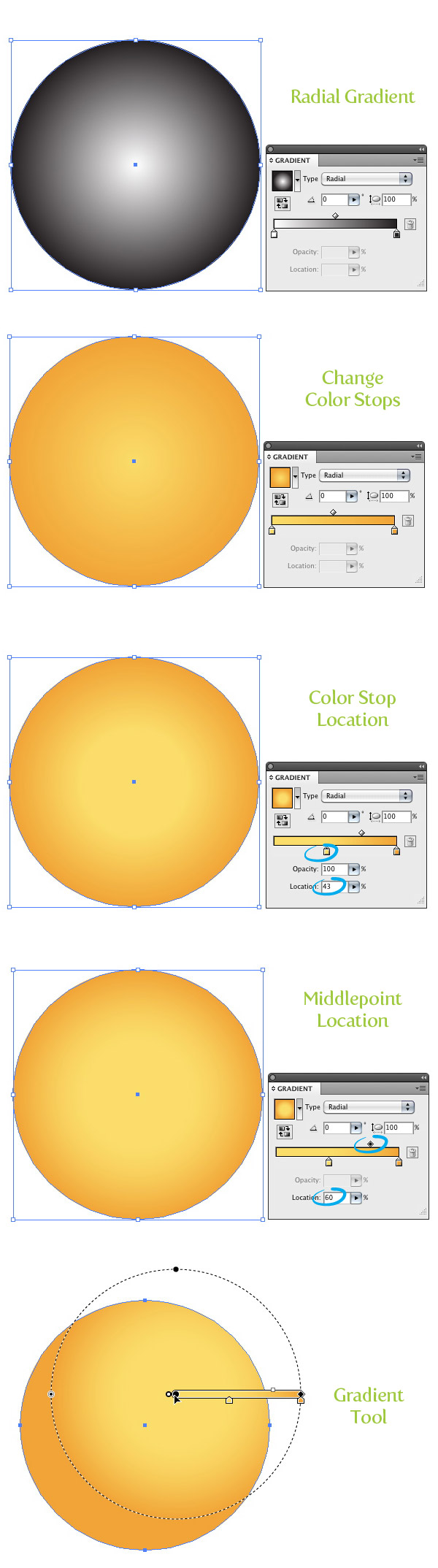
Fill the ellipse with a radial gradient from the Gradient panel. In the Gradient panel, change the first color stop in the gradient to a light orange color and change the second color stop to a orange color. Next, from the Gradient panel, select your first light orange color stop and change the Location to 43. Select the Middlepoint on the Gradient Slider and change the location to 60. With the Gradient tool (G) move the center of the gradient slightly up and to the right.
Step 3
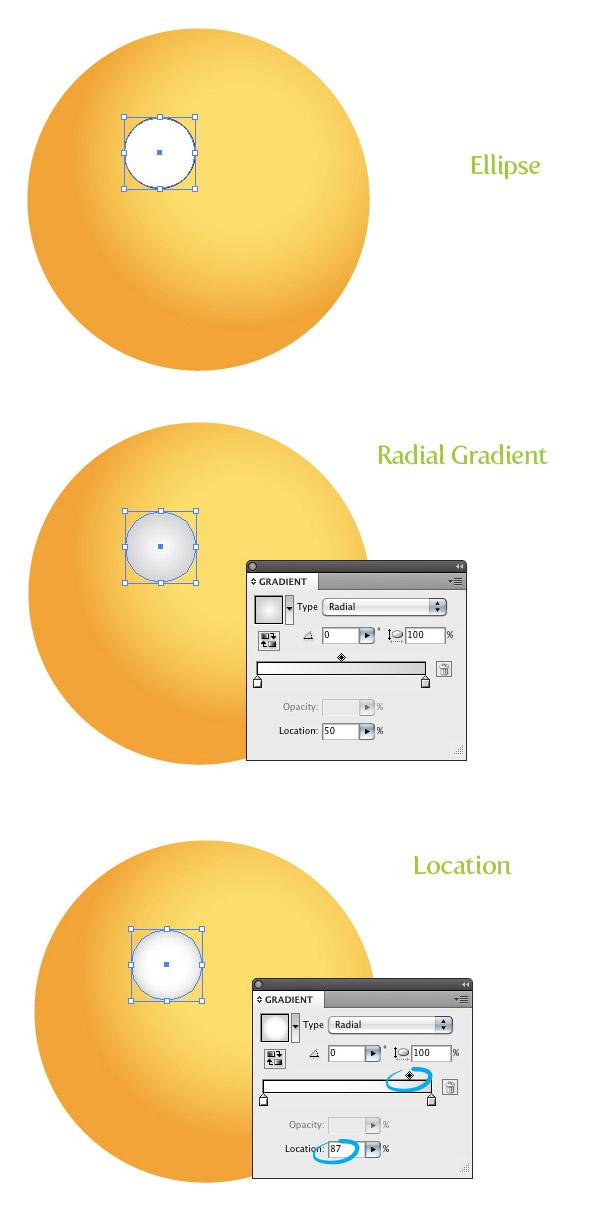
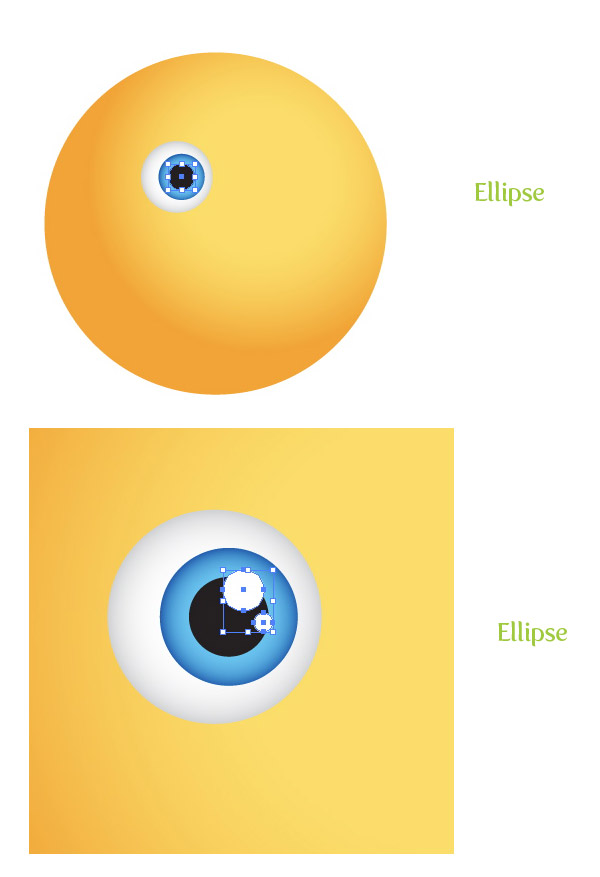
Create a new ellipse and fill it with a radial gradient. Make the first color stop in the gradient white and the second color stop a light gray color. Change the location of the gradient’s Middlepoint to 87.
Step 4
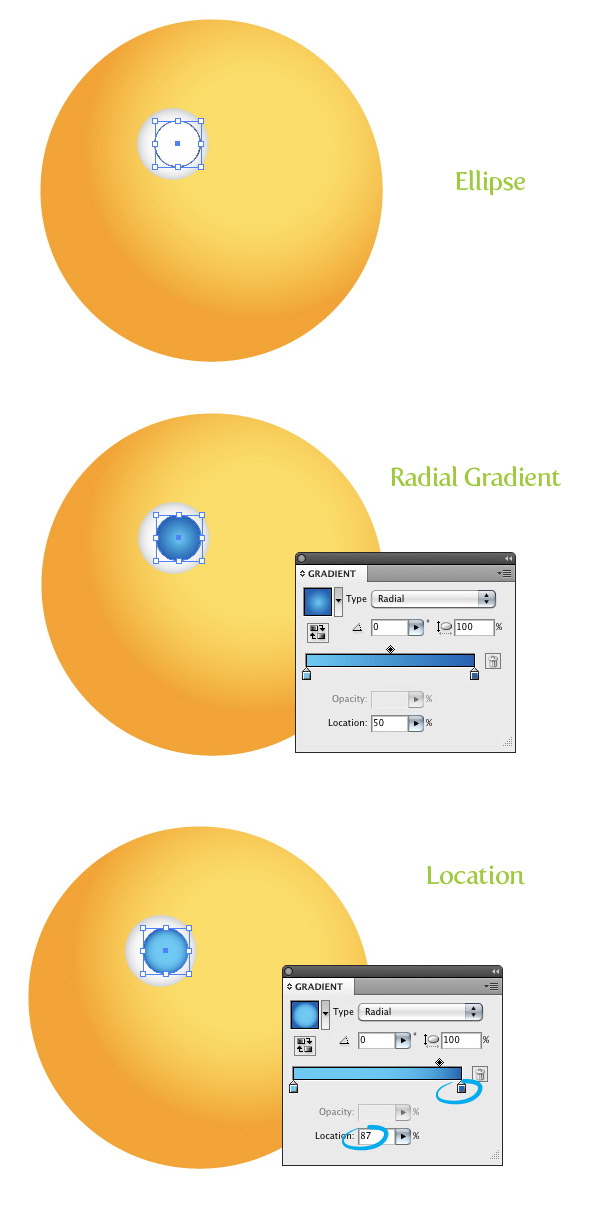
Create a new smaller ellipse in the center and to the right of the previous ellipse. Fill the ellipse with a radial gradient with the first color stop a light cyan color and the second color stop a dark cyan color. Change the location of the gradient’s Middlepoint to 87.
Step 5
Create another ellipse in the center of the previous ellipse and fill it with black. Next, create two other smaller white ellipses and place them over the black ellipse. Now we have an eye!
Step 6
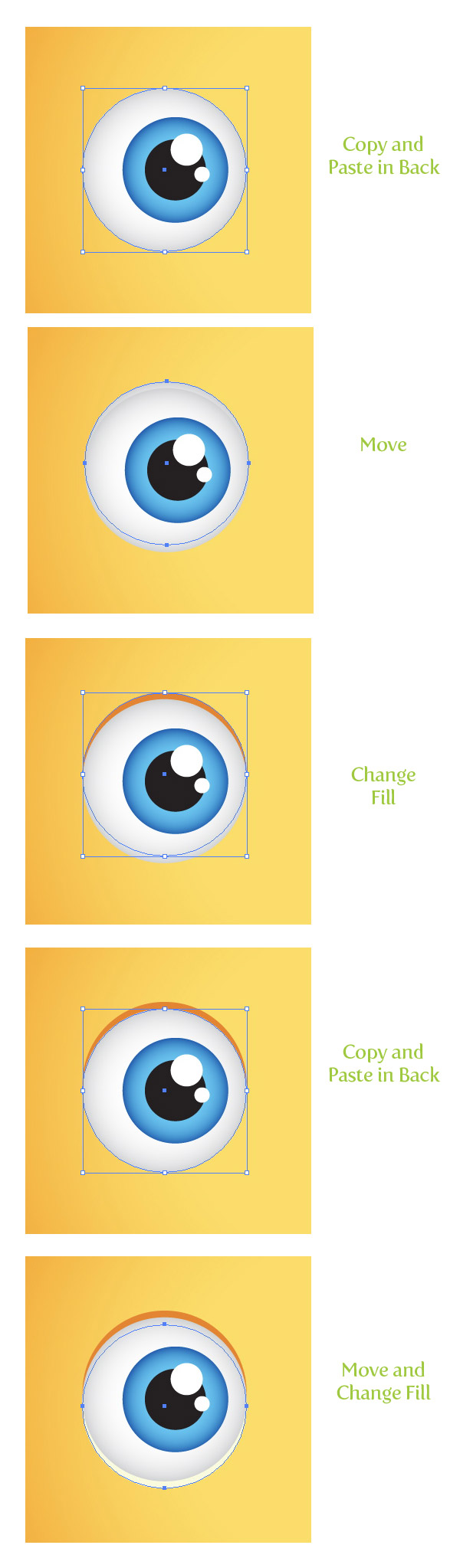
Select the white eye ellipse, Copy (Command + C), and Paste in Back (Command + B). With the copy still selected, move it up slightly. Change the fill of the ellipse to a dark orange color. Select the white ellipse again, Copy (Command + C), and Paste in Back (Command + B). This time, move the copy down slightly and change the color to a light yellow color.
Step 7
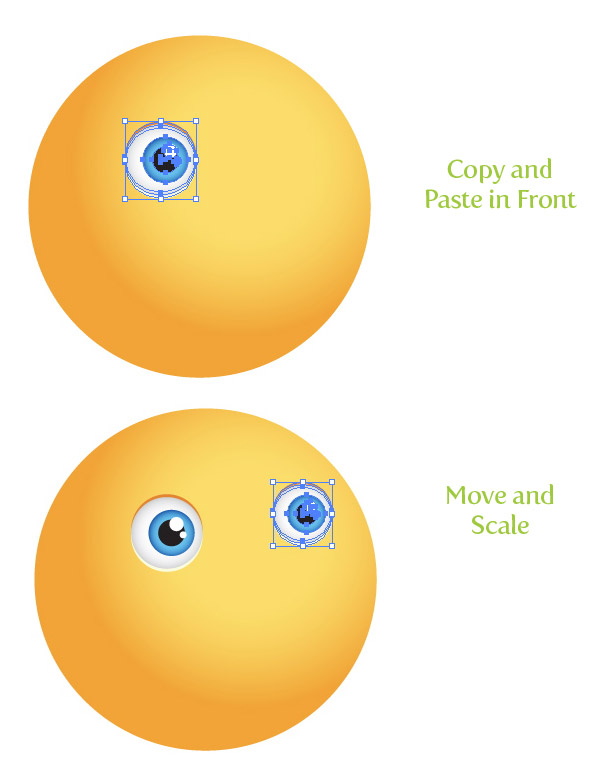
Select all the eye shapes, Copy (Command + C), and Paste in Front (Command + F). With the copies selected, move them to the right of the main ellipse shape and scale down slightly with the Selection tool (V).
Step 8
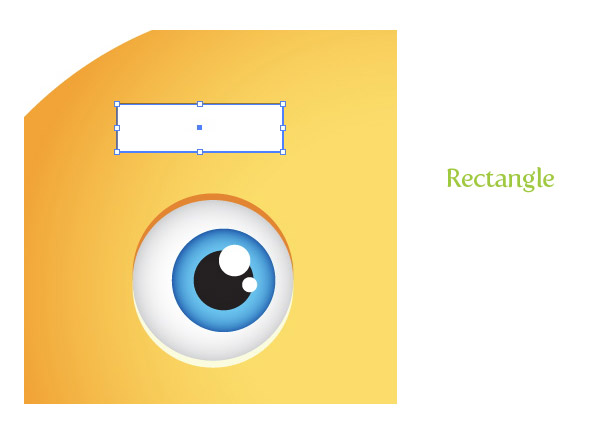
With the Rectangle tool (M) create an rectangle about the width of the eye shape and about a fourth of it’s height.
Step 9
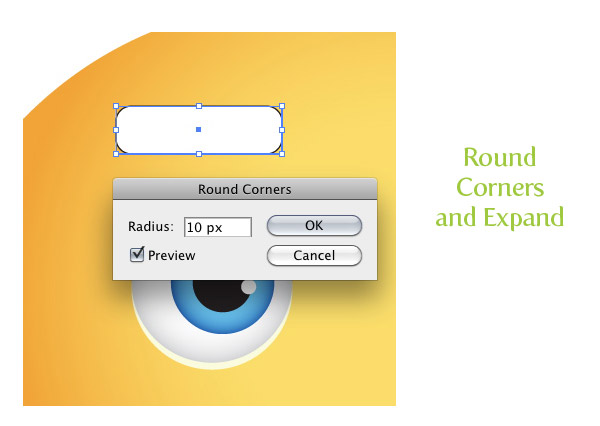
Go Effects > Stylize > Round Corners and in the Round Corners dialog, change the radius to 10 px. The radius might change depending on dimension of your artwork. Just play around until you get something similar to the preview image below. Next, go Object > Expand Appearance.
Step 10
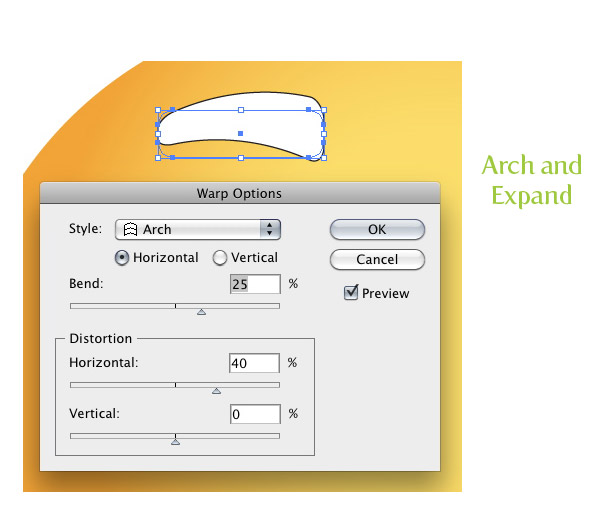
Go Effects > Warp > Arch. With the Warp Options dialog open, make sure the Horizontal radial button in selected, change the Bend percentage to 25, and change the Horizontal Distortion to 40. Next, go Object > Expand Appearance.
Step 11
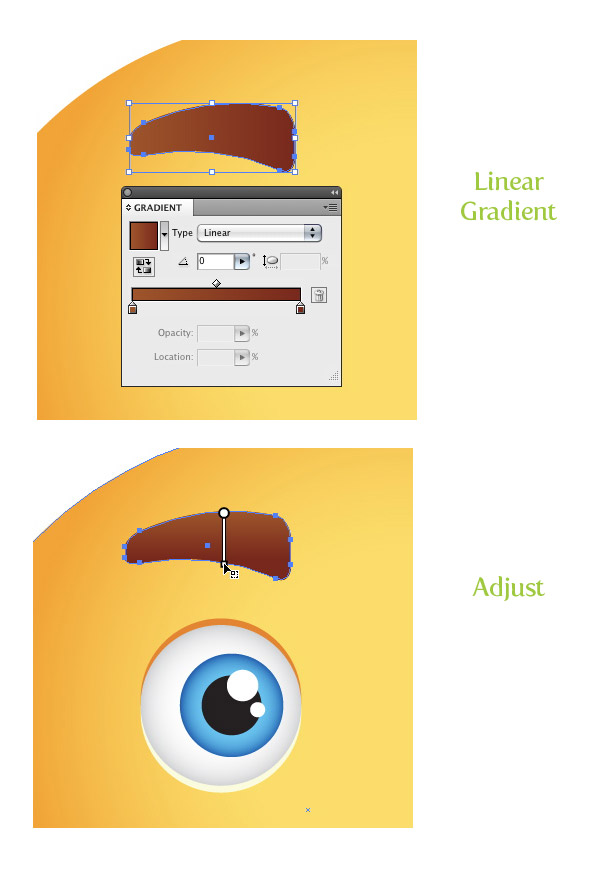
Change the fill of the warped shape to a linear gradient. Make the first color stop in the gradient a red-brown color and the second color stop a dark red-brown color. With the Gradient tool (G) adjust the gradient so the darker part of the gradient is at the bottom of the shape.
Step 12
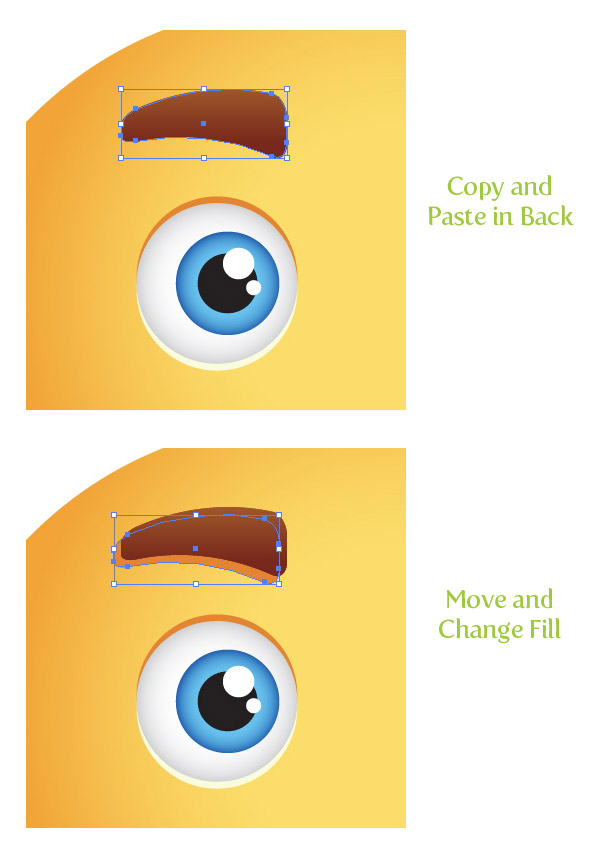
Copy (Command + C) the eyebrow shape and Paste in Back (Command + B). With the copy selected, move it down and to the left slightly. Change the fill of the copy to a dark orange.
Step 13
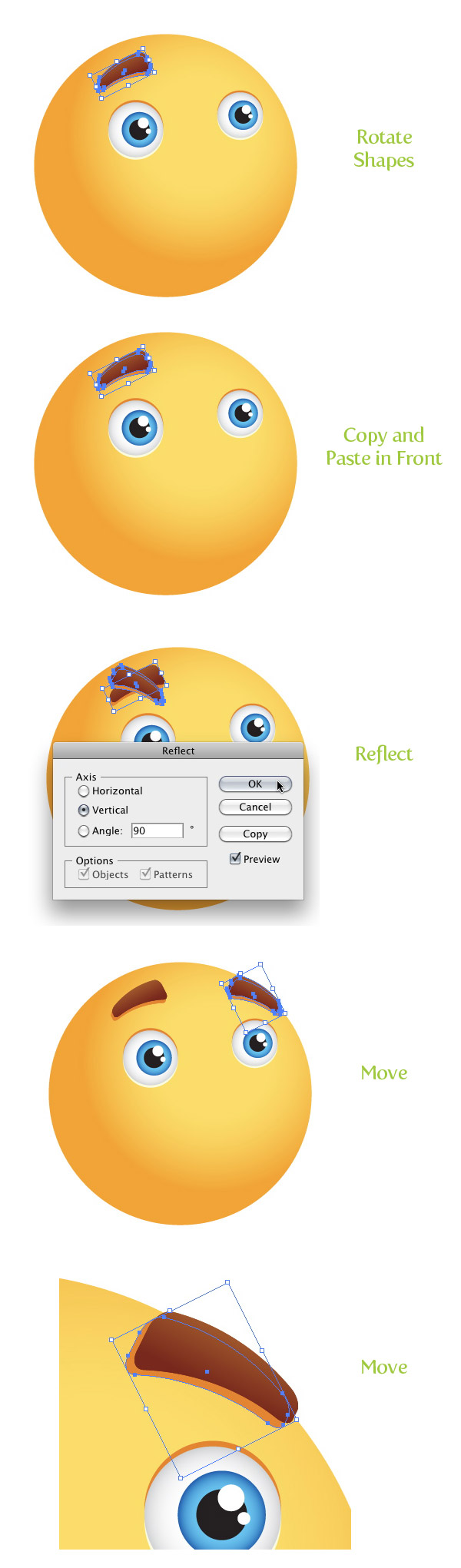
With both eyebrow shapes selected, rotate them to the left slightly with the Selection tool (V). Copy (Command + C) the eyebrow shapes and Paste in Front (Command + F). With the copy selected, go Object > Transform > Reflect. In the reflect dialog, select the Vertical radial button and press OK. Next, move the copies to the other side of the face above the other eye. Select the dark orange shadow of the copies and move it the left side of the eyebrow.
Step 14
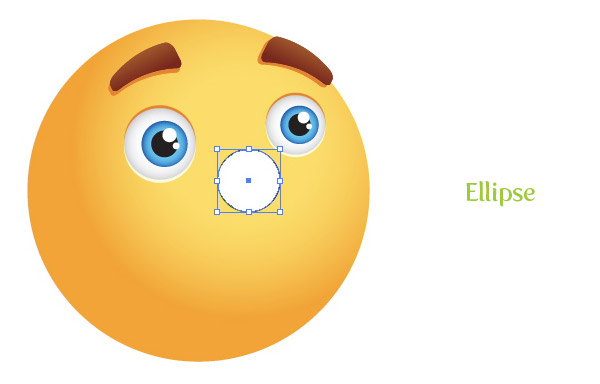
Create an ellipse about the size of one of the eyes and place it in-between the eyes towards the bottom.
Step 15
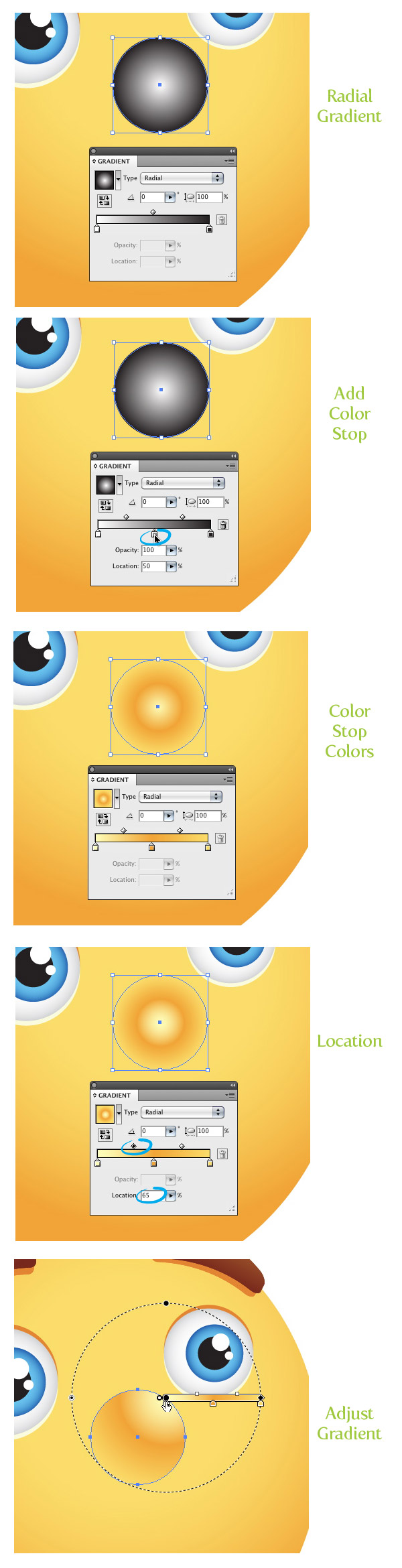
Fill the new ellipse with a radial gradient. For this gradient we are going to add one more color stop, making a total of three color stops in the gradient. To do this, click in the middle of the Gradient Slider in the Gradient panel. Next, change the first color stop to a lighter orange color than your original light orange from the main sun shape, change the middle color stop to the same orange color as the main sun body shape, and change the last color stop to the same light orange as the main sun shape. Change the first Middlepoint of the first two color stop to 65. Finally, with the Gradient tool (G), scale the gradient so the center of the gradient is in the top right corner of the ellipse.
Step 16
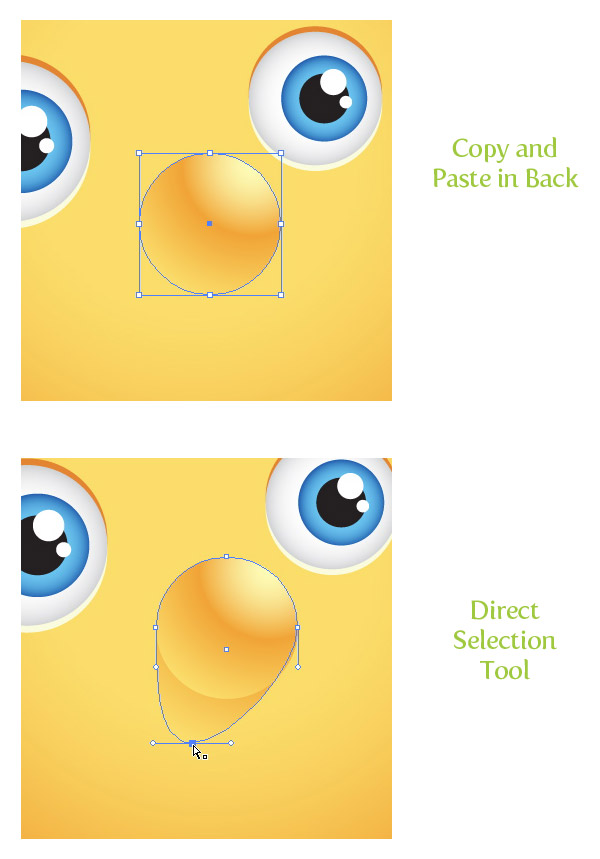
Copy (Command + C) the nose shape and Paste in Back (Command + B). With the Direct Selection tool (A) grab the bottom anchor point and drag in down and to the left, creating a shadow.
Step 17
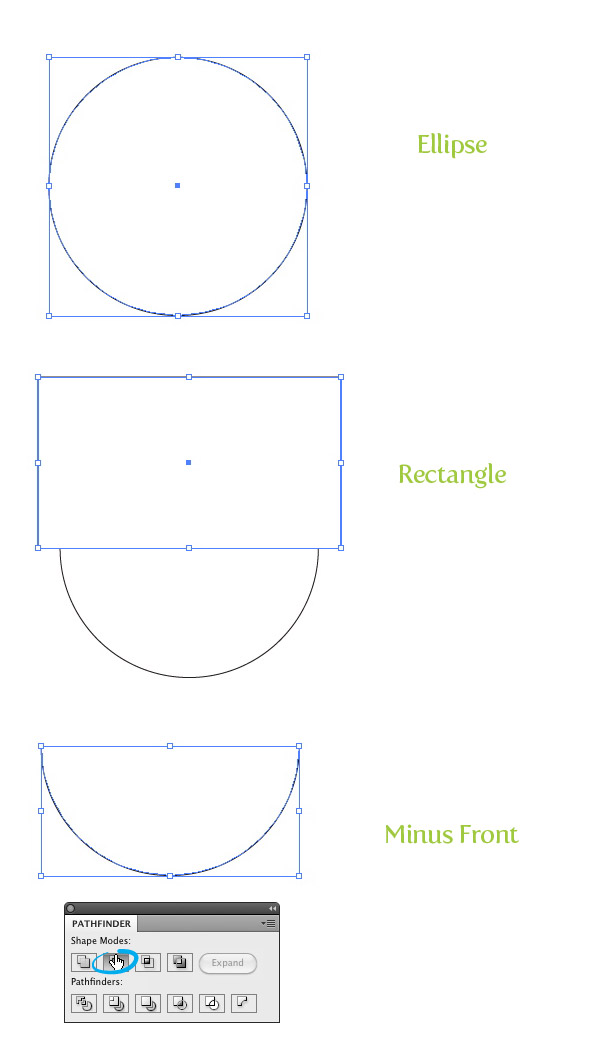
Create an ellipse about half the size of the main sun shape. Draw a rectangle covering the top half of the ellipse. Select both shapes and press the Minus Front button in the Pathfinder panel.
Step 18
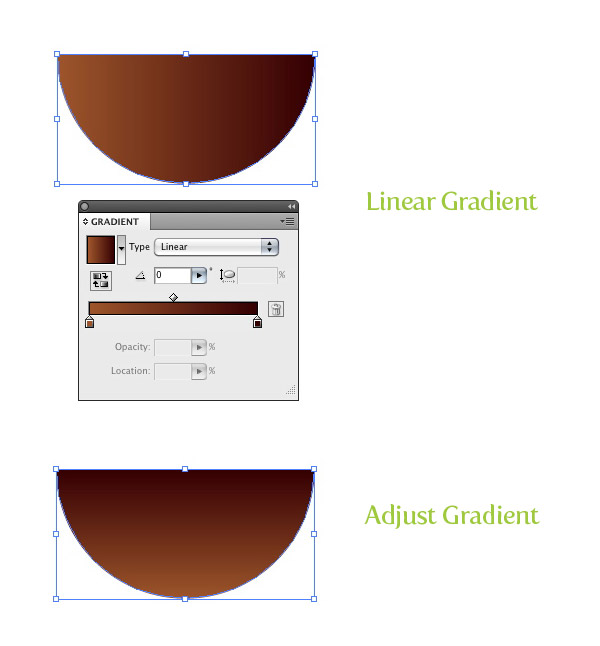
Fill the new mouth shape with a linear gradient with the first color stop a red-brown color and the second color stop a darker red-brown color. With the Gradient tool (G) adjust the gradient bottom up so the darker part of the gradient is at the top of the mouth.
Step 19
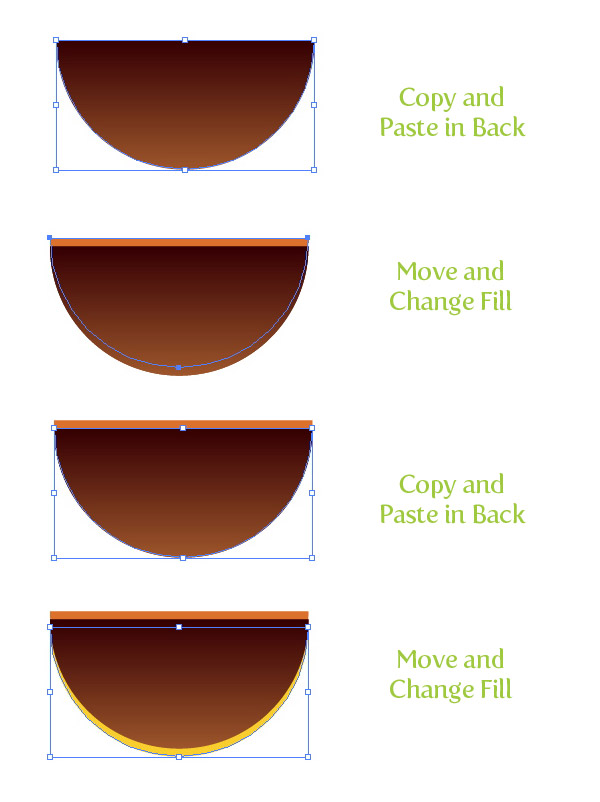
Copy (Command + C) the mouth shape and Paste in Back (Command + B). Move the copy up slightly and change the color to your dark orange color. Copy (Command + C) the mouth shape and Paste in Back (Command + B) again. This time, move the shape down and change the fill to your light orange color.
Step 20
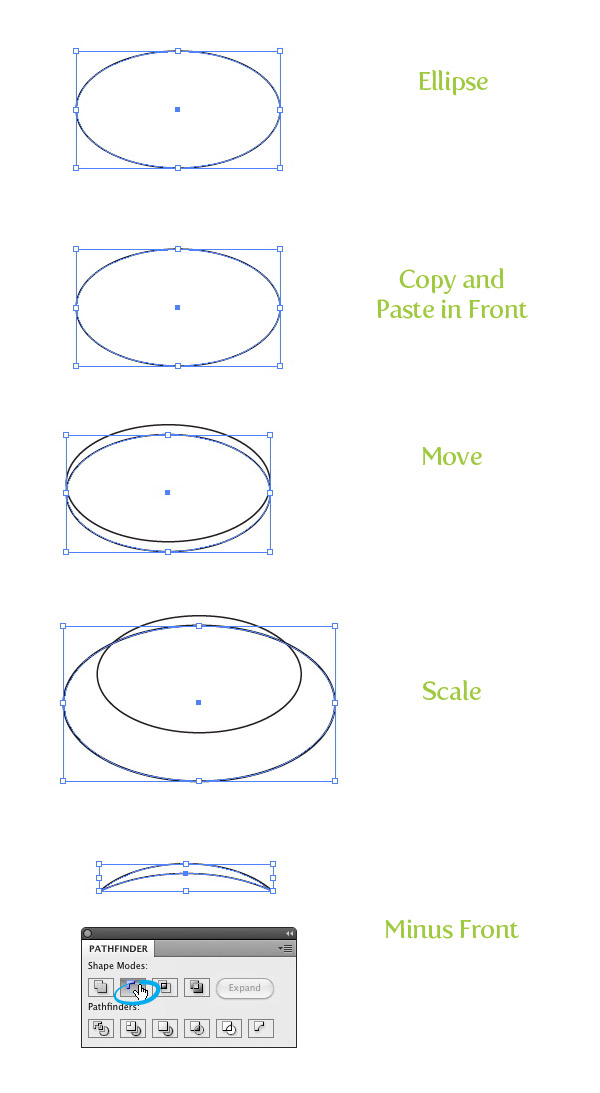
Create an oblong ellipse that is about one third the size of the mouth. Copy (Command + C) the ellipse and Paste in Front (Command + F). Move the copy down slightly and scale up about a fourth of the original size. Next, select both shapes and press the Minus Front button from the Pathfinder panel.
Step 21
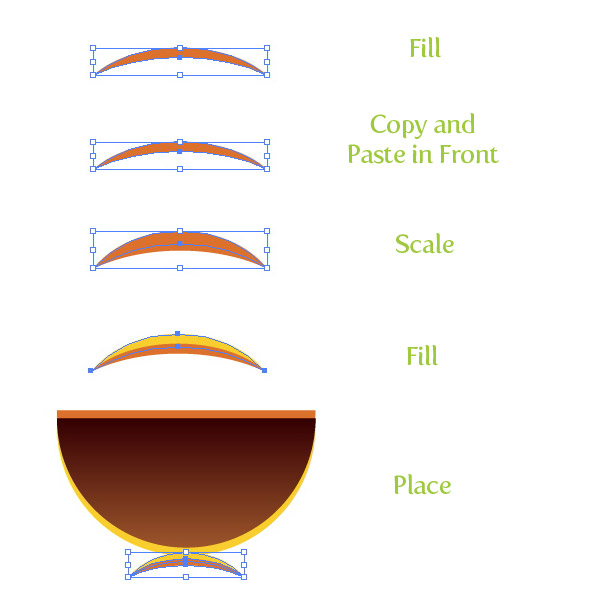
Fill the new shape with your dark orange color. Copy (Command + C) the shape and Paste in Back (Command + B). Next, scale the copied shape up and change the color to your light orange color. Center both shapes on the bottom of the mouth shapes you have already created.
Step 22
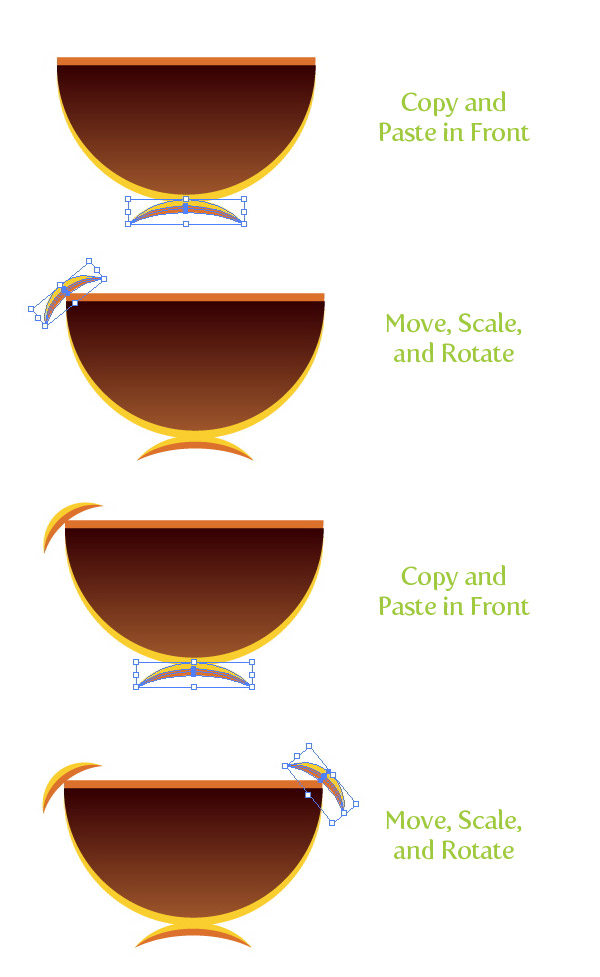
Select the newest curved shapes you created, Copy (Command + C), and Paste in Front (Command + F). Scale down and rotate the shapes to the left with the Selection tool (V), then place them on the left top side of the mouth. Next, Copy (Command + C) the original curved shapes, Paste in Front (Command + F), rotate and scale the shapes to the right, and place on the right side of the mouth shape.
Step 23
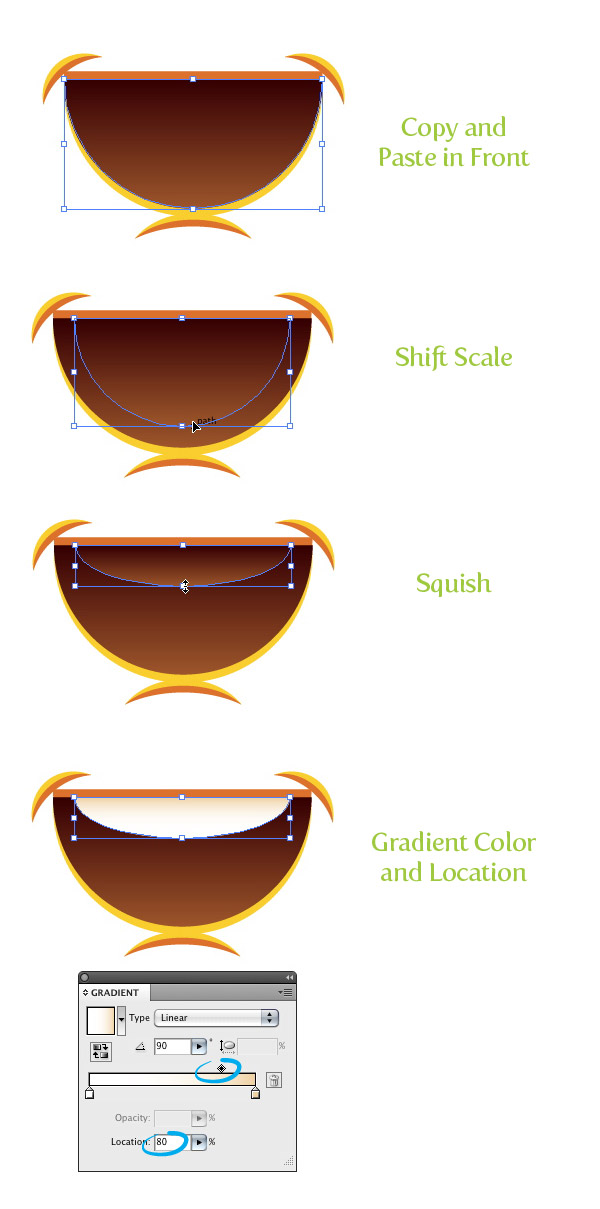
Select the main dark mouth shape, Copy (Command + C), and Paste in Front (Command + F). With the Selection tool (V), hold down the Shift key and scale the copy bottom up slightly. Still with the Selection tool (V), squish the copied shape from the bottom up until the copy is about one fourth the original size. Change the first color stop in the linear gradient to white and the second to a light orange. Also, change the Location of the Middlepoint to 80.
Step 24
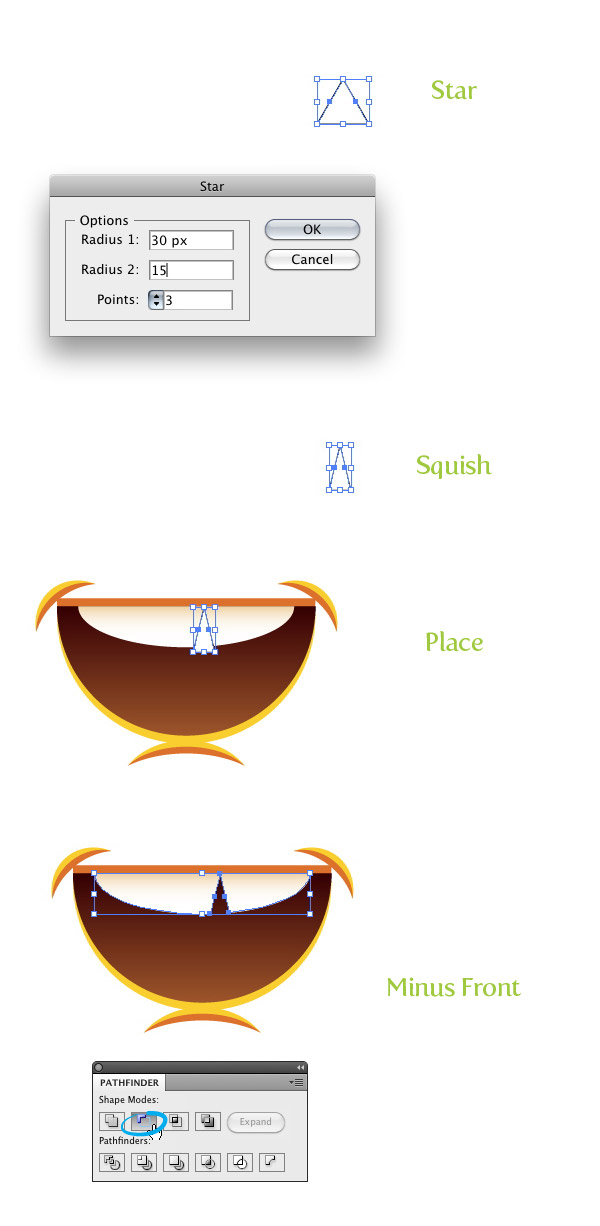
With the Star tool (found under the shape tools in the Tools panel), click on the artboard to open the Star dialog. In the dialog change Radius 1 to 30 px, Radius 2 to 15 px, and the Point to 3 (your radius dimensions might be different depending on the dimension of your artwork, just make sure that Radius 2 is half the size of Radius 1). Squish the triangle shape horizontally to about half it’s original size. Place the triangle over the center of the teeth to the right . Next, select the teeth and the triangle and press the Minus Front button from the Pathfinder panel.
Step 25
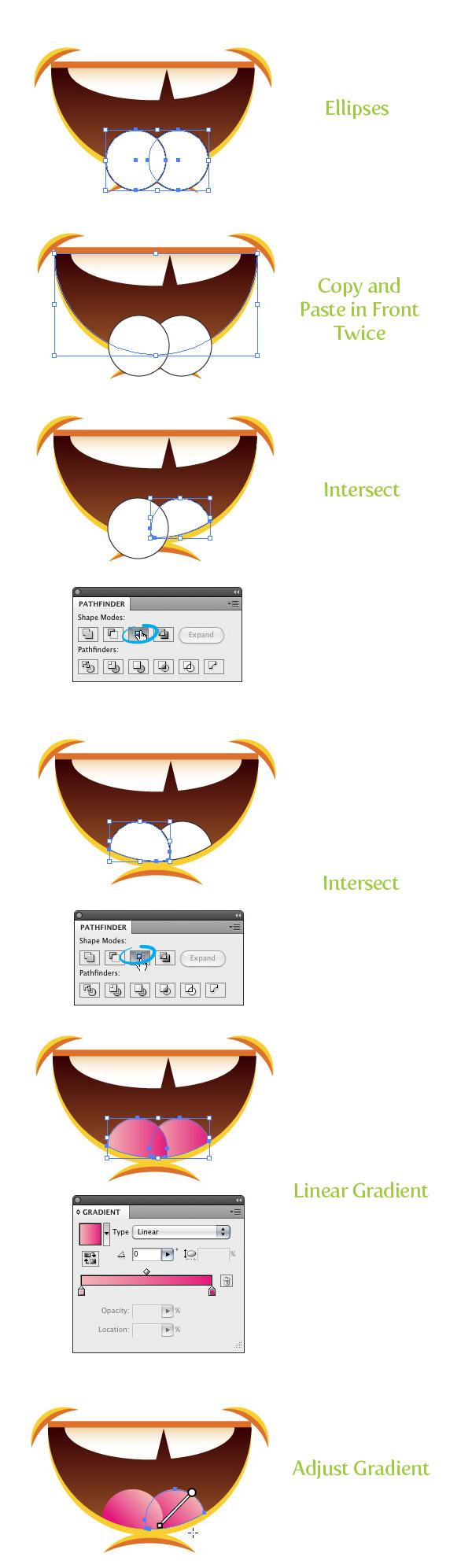
With the Ellipse tool (L) create two ellipse toward the bottom of the mouth shape, making sure half of the ellipses are hanging outside of the mouth shape. Select the main dark mouth shape, Copy (Command + C), and Paste in Front (Command + F) two times. Select one of the copies, select the right ellipse, and press the Intersect button from the Pathfinder panel. Repeat the same for the left ellipse. Fill both ellipses with a linear gradient with the first color stop a light pink and the second color stop a pink color. Separately adjust each ellipse’s gradient with the Gradient tool (G) from the top right of the ellipse to the bottom left.
Step 26
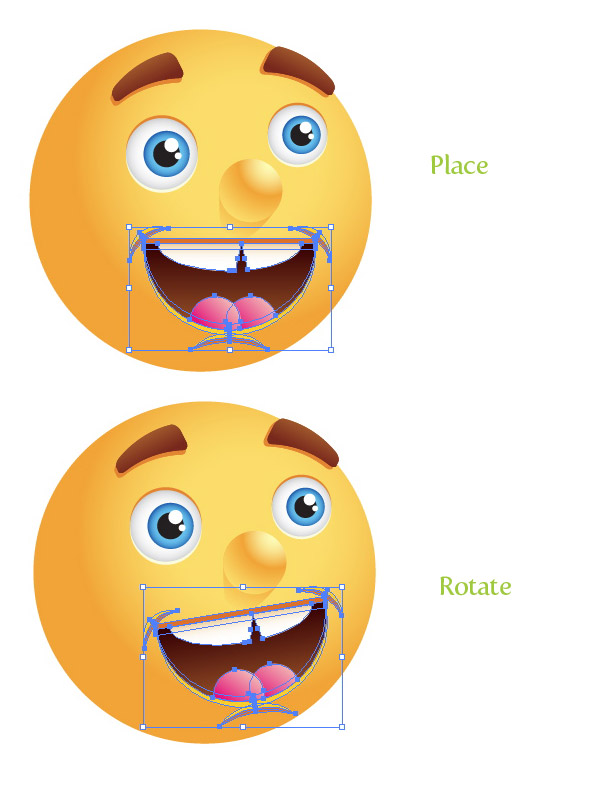
Select all the mouth shapes and place them on the sun’s face. Next, Rotate the mouth shape to the left slightly.
Step 27
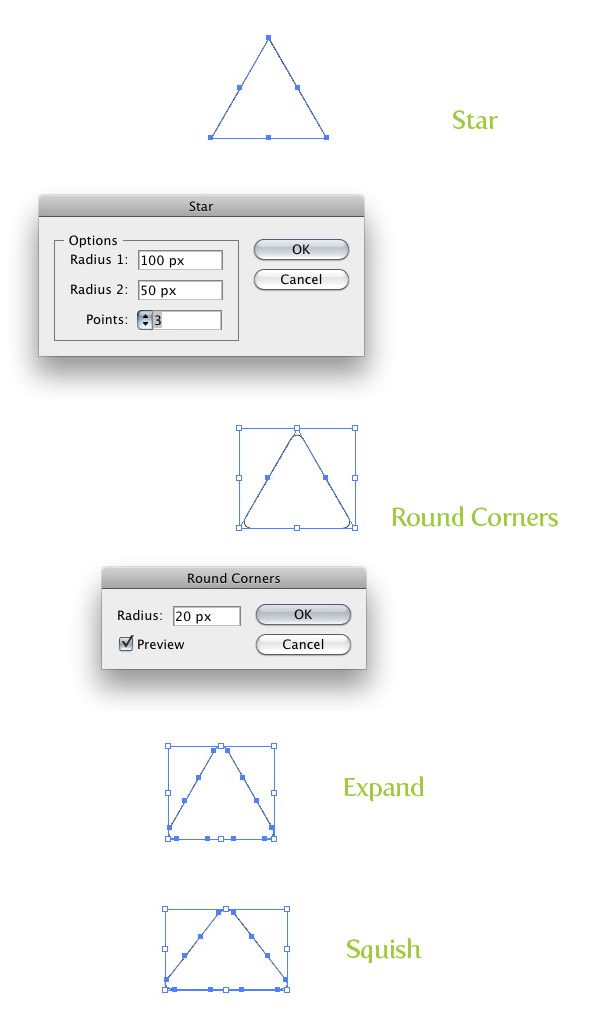
With the Star tool, click on the artboard to bring up the Star dialog. Create a star with a Radius 1 of 100 px, a Radius 2 of 50 px, and 3 Points (like before these dimensions might be different depending on your artwork). Next, go Effects > Stylize > Round Corners and in the Round Corners dialog, change to Radius to 20 px. Expand the shape and squish it down slightly with the Selection tool (V).
Step 28
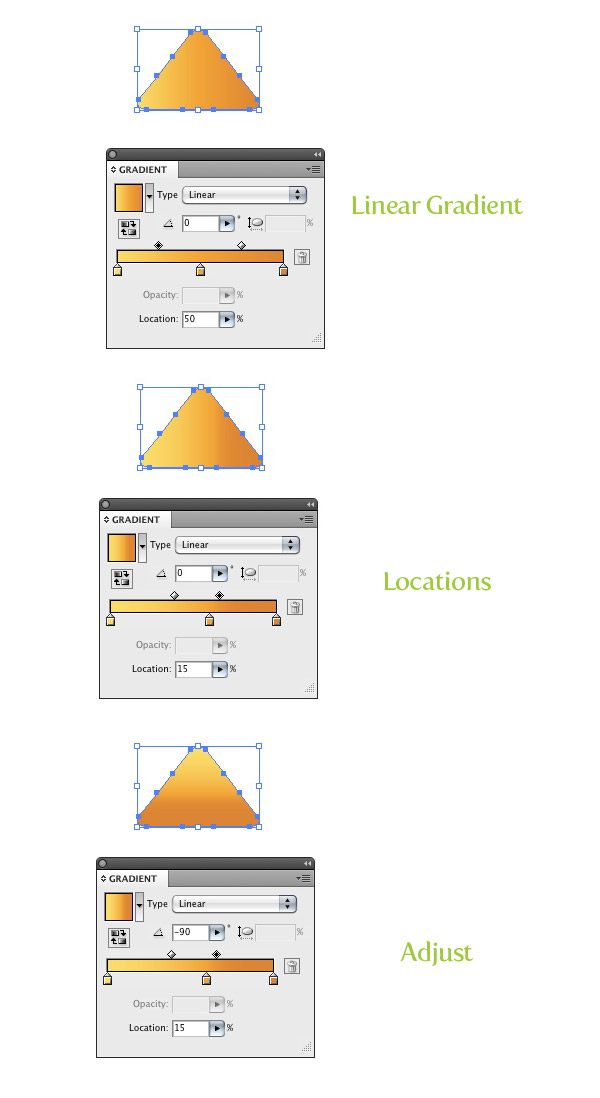
Fill the triangle with a three color stop gradient, making the first color stop a light orange color, the second a orange color, and the third a dark orange color. Select the Middlepoint in between the first two color stops in and change the Location to 65. Next, change the Location of the second color stop to 60 and the Middlepoint Location of the last two color stop to 15. Adjust the gradient from top to bottom with the Gradient tool (G).
Step 29
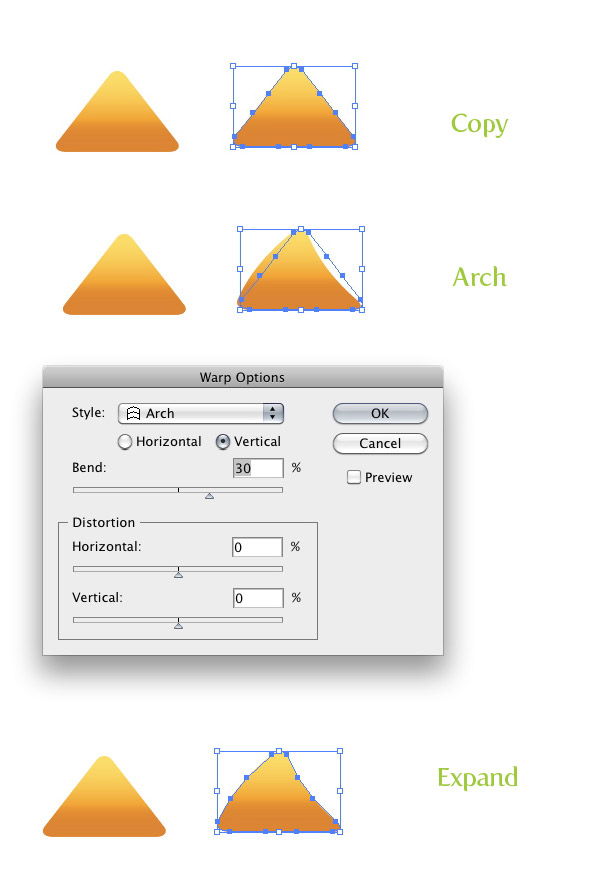
Make a copy of the triangle so you have a total of two. With the copy selected, go Effect > Warp > Arch. Within the Warp Options dialog, select the Vertical radial button and change the Bend percentage to 30 and expand the appearance.
Step 30
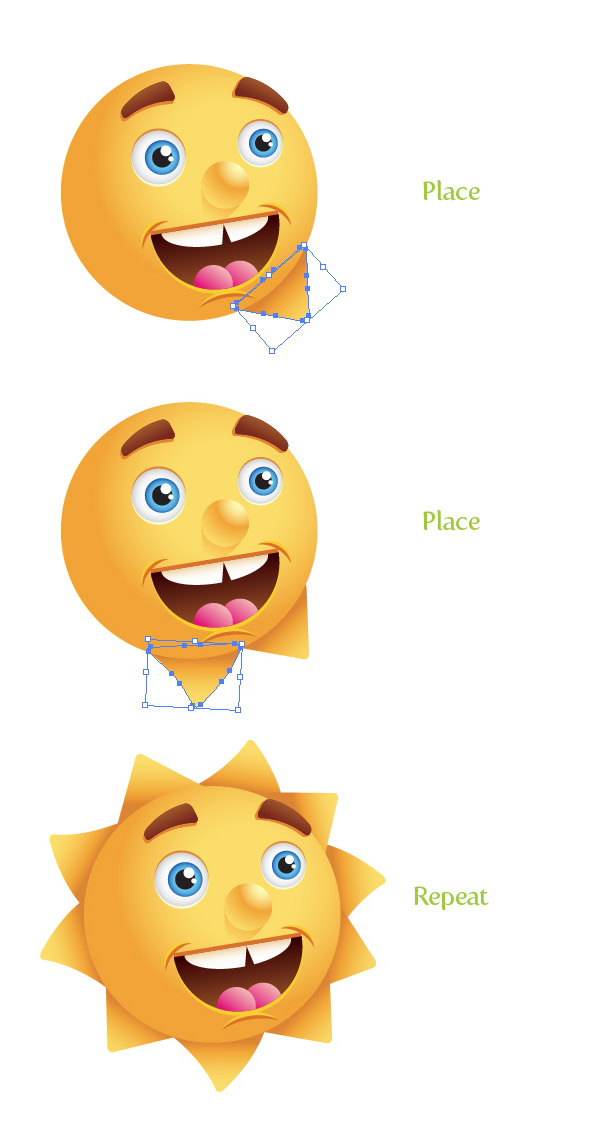
Make a copy of the first triangle, move, and rotate the copy so it radiates from the sun face shape, creating sun bursts. Make sure the triangle is behind all other artwork by going Object > Arrange > Send to Back. Next, rotate and place copies of the triangles, alternating between the two, around the sun. Make sure that all the triangles are sent to the back.
Step 31
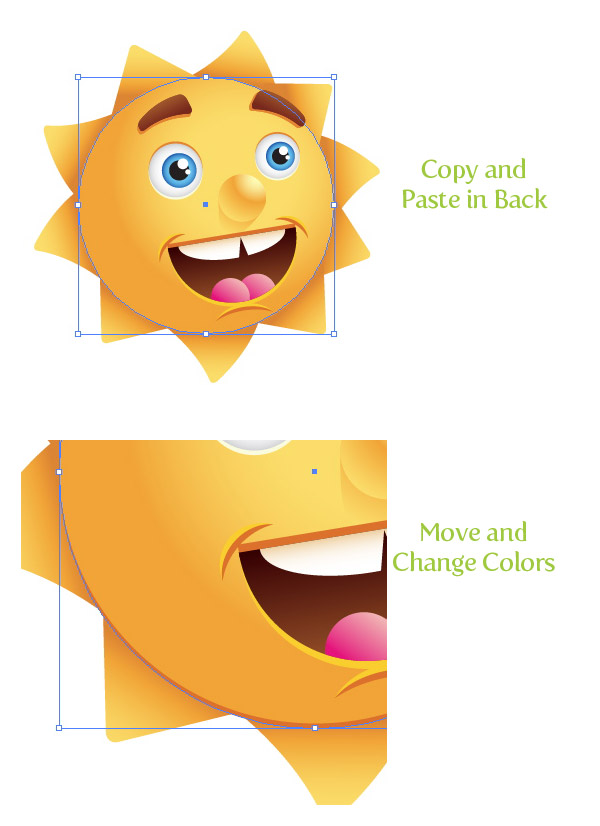
Select the main sun face shape, (Command + C), and Paste in Back (Command + B). With the copy still selected, move it down slightly and change the color to your dark orange color.
Step 32
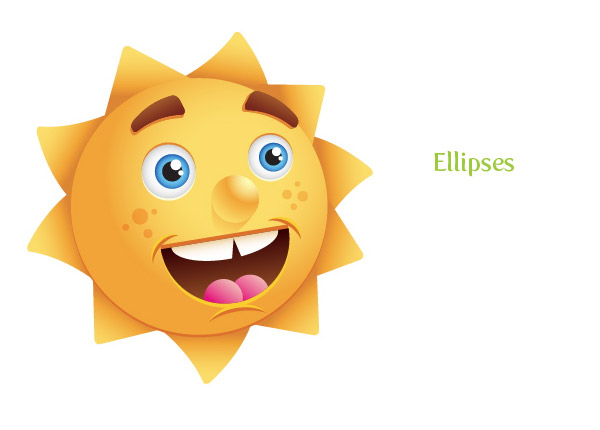
To add just a little more detail and fun to the sun, draw varying sized ellipses above the corners of the mouth. All done!
Final Image
Again below is the final image we just created.
Sample Usage
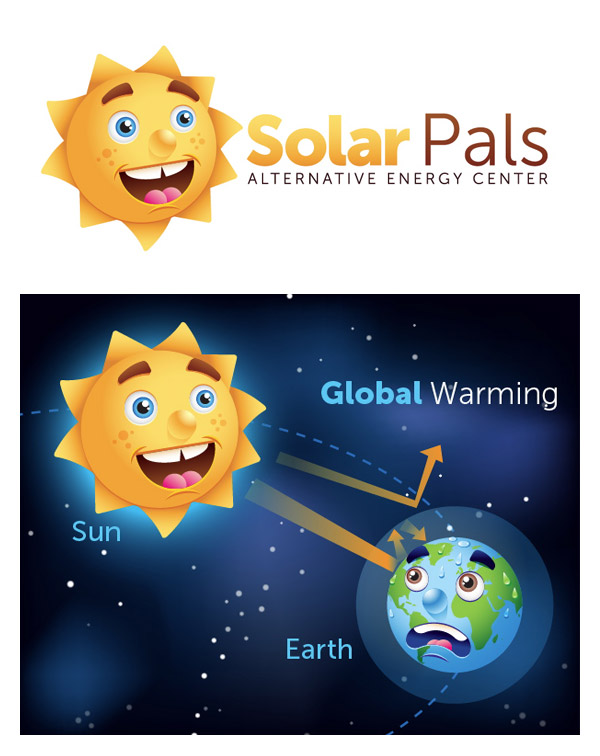
Below are some sample images of this tutorial in use. One is a logo for a fictional alternate energy learning center for kids (just made that up, but you get the point). The second one is a global warming diagram for children (not very accurate, I know). It is easy to apply this illustration to other projects or adapt it to other illustrations (like the earth illustration in the Global Warming diagram). Try to see what you can use it for!


fantastic submit, very informative. I wonder why the opposite experts of this sector don’t realize this. You should continue your writing. I’m sure, you’ve a great readers’ base already!
I’m still learning from you, as I’m trying to reach my goals. I definitely liked reading everything that is posted on your blog.Keep the stories coming. I loved it!
Pretty great post. I simply stumbled upon your blog and wished
to mention that I’ve truly loved surfing around your weblog posts.
After all I will be subscribing in your rss
feed and I’m hoping you write again soon!
Hi there, after reading this amazing article i am too cheerful
to share my experience here with mates.
I was curious if you ever thought of changing the layout of your blog?
Its very well written; I love what youve got to say.
But maybe you could a little more in the way of content
so people could connect with it better. Youve got an awful lot of text for only having 1 or 2 pictures.
Maybe you could space it out better?
I think this is among the most important info for me.
And i’m glad reading your article. But want to remark
on some general things, The web site style is great,
the articles is really great : D. Good job, cheers
Hi! I’m at work browsing your blog from my new iphone! Just wanted to say I love reading through your blog and look forward to all your posts! Keep up the fantastic work!
Aw, this was a really nice post. In concept I wish to put in writing like this moreover – taking time and precise effort to make a very good article… however what can I say… I procrastinate alot and certainly not appear to get one thing done.
I’ve been absent for some time, but now I remember why I used to love this site. Thanks , I will try and check back more frequently. How frequently you update your site?
First of all I want to say great blog! I had a quick question which I’d like to
ask if you do not mind. I was curious to know how you center yourself and clear your head
prior to writing. I have had difficulty clearing my mind in getting my ideas out.
I truly do take pleasure in writing however it just seems like
the first 10 to 15 minutes are wasted simply just trying to
figure out how to begin. Any recommendations or tips?
Kudos!
Somebody essentially lend a hand to make significantly posts I would state. This is the very first time I frequented your website page and thus far? I surprised with the analysis you made to make this particular post incredible. Excellent task!
Nice post. I used to be checking continuously this weblog and I’m inspired! Very useful info specifically the closing phase 🙂 I take care of such info much. I used to be looking for this certain info for a long time. Thank you and good luck.
Hi there it’s me, I am also visiting this website on a regular basis, this site is genuinely nice and the people
are genuinely sharing nice thoughts.
I’am amazed
Do you mind if I quote a few of your posts as long as I provide credit and sources back to your webpage? My website is in the very same niche as yours and my visitors would certainly benefit from some of the information you present here. Please let me know if this ok with you. Cheers!
Good blog! I really love how it is simple on my eyes and the data are well written. I am wondering how I might be notified whenever a new post has been made. I’ve subscribed to your feed which must do the trick! Have a nice day!
There are some attention-grabbing points in time in this article however I don’t know if I see all of them middle to heart. There’s some validity however I’ll take hold opinion until I look into it further. Good article , thanks and we wish more! Added to FeedBurner as nicely
Great site. A lot of useful information here. I am sending it to several friends ans also sharing in delicious. And obviously, thanks for your effort!
Wow! This could be one particular of the most beneficial blogs We have ever arrive across on this subject. Actually Excellent. I am also an expert in this topic so I can understand your effort.
Definitely, what a fantastic blog and educative posts, I will bookmark your blog.Best Regards!
Hi to every one, the contents present at this web site are really awesome for people knowledge, well, keep
up the nice work fellows.
Heya superb website! Does running a blog similar to this require a lot of work?
I have no knowledge of coding however I had been hoping to start
my own blog soon. Anyways, should you have any suggestions or tips
for new blog owners please share. I understand this is off topic but I just had to ask.
Kudos!
Hi there everyone, it’s my first go to see at this web site, and paragraph is in fact fruitful in favor of me, keep up posting these
types of articles.
I don’t even know the way I finished up here, but I believed this put up was once
good. I don’t recognise who you might be however certainly you’re going to a well-known blogger if you aren’t already.
Cheers!
Hi, after reading this remarkable article i am also
delighted to share my know-how here with colleagues.
Usually I don’t read article on blogs, however I wish to say that this write-up very forced me to check
out and do so! Your writing style has been amazed me.
Thanks, very nice post.
I think the admin of this web page is genuinely working
hard in support of his website, for the reason that here every
material is quality based stuff.
Hurrah, that’s what I was looking for, what a stuff!
existing here at this blog, thanks admin of this website.
Wonderful post! We will be linking to this great article on our website.
Keep up the great writing.
Great web site you’ve got here.. It’s difficult to find
high-quality writing like yours nowadays. I seriously appreciate individuals like you!
Take care!!
Thanks for sharing your thoughts about หวย. Regards
Hi there mates, pleasant article and pleasant urging commented here, I am
truly enjoying by these.
hi!,I really like your writing very much! percentage we keep up a correspondence extra approximately your post on AOL? I need a specialist in this space to unravel my problem. May be that’s you! Taking a look ahead to peer you.
This is very interesting, You are a very skilled blogger. I’ve joined your feed and look forward to seeking more of your great post. Also, I have shared your site in my social networks!
Its like you read my mind! You appear to know so much about this, like you wrote the book in it or something. I think that you could do with a few pics to drive the message home a little bit, but instead of that, this is fantastic blog. An excellent read. I will certainly be back.
Hello my friend! I wish to say that this article is amazing, nice written and include almost all vital infos. I would like to see more posts like this.
Heya i’m for the first time here. I found this board and I find It truly useful & it helped me out a lot. I hope to give something back and aid others like you aided me.
I’ve been absent for some time, but now I remember why I used to love this web site. Thank you, I’ll try and check back more frequently. How frequently you update your web site?
wonderful put up, very informative. I’m wondering why the other experts of this sector do not realize this. You should continue your writing. I’m sure, you’ve a great readers’ base already!
I just like the helpful information you supply to your articles.
I will bookmark your blog and take a look at again right here frequently.
I’m slightly sure I’ll learn many new stuff right here! Good luck for the next!
Have you ever considered about including a little bit more than just your articles? I mean, what you say is valuable and all. But imagine if you added some great images or video clips to give your posts more, “pop”! Your content is excellent but with images and videos, this site could definitely be one of the greatest in its niche. Great blog!
you’re actually a just right webmaster. The site loading speed is amazing. It sort of feels that you are doing any distinctive trick. Furthermore, The contents are masterwork. you’ve done a magnificent process on this matter!
Hello there, I discovered your website via Google while searching for a similar subject, your web site got here up, it appears to be like good. I’ve bookmarked it in my google bookmarks.
I am in fact grateful to the holder of this web page who has shared
this wonderful post at at this time.
I really like your blog.. very nice colors & theme. Did you design this website yourself or did you hire someone to do it for you? Plz reply as I’m looking to create my own blog and would like to know where u got this from. kudos
The next time I read a weblog, I hope that it doesnt disappoint me as a lot as this one. I mean, I do know it was my option to learn, however I really thought youd have one thing fascinating to say. All I hear is a bunch of whining about one thing that you possibly can repair if you werent too busy in search of attention.
hello!,I love your writing very a lot! proportion we communicate extra about your article on AOL? I require an expert in this house to resolve my problem. Maybe that’s you! Looking forward to peer you.
Thanks for finally writing about > Create a Happy Sun Character – Vectips
< Liked it!
A person necessarily lend a hand to make significantly posts
I’d state. This is the first time I frequented your website page
and thus far? I surprised with the research you made to
make this particular submit amazing. Great task!
I have been browsing online more than 4 hours today, yet I never found any interesting article
like yours. It is pretty worth enough for me. In my view, if all website owners and bloggers made good content as you did, the internet will be much more useful than ever before.
Do you mind if I quote a few of your posts as long
as I provide credit and sources back to your website? My
website is in the exact same niche as yours and my visitors would
really benefit from a lot of the information you provide here.
Please let me know if this alright with you. Appreciate it!
Great post and straight to the point. I am not sure if this is truly the best place to ask but do you folks have any thoughts on where to employ some professional writers? Thx 🙂
I was wondering if you ever thought of changing the structure of your site? Its very well written; I love what youve got to say. But maybe you could a little more in the way of content so people could connect with it better. Youve got an awful lot of text for only having one or 2 images. Maybe you could space it out better?
thank you great article
Really enjoyed this article. Thanks Again. Keep writing.
Howdy! I could have sworn I’ve been to this blog before but after checking through some of the post I realized it’s new to me. Nonetheless, I’m definitely happy I found it and I’ll be bookmarking and checking back frequently!
An attention-grabbing discussion is price comment. I feel that you should write more on this topic, it won’t be a taboo subject but usually individuals are not sufficient to speak on such topics. To the next. Cheers
Great post. I was checking continuously this blog and I’m impressed! Very useful info specifically the last part 🙂 I care for such information much. I was seeking this certain info for a very long time. Thank you and best of luck.
What’s Happening i’m new to this, I stumbled upon this I have found It absolutely helpful and it has aided me out loads. I hope to contribute & help other users like its helped me. Great job.
Hi there! I just want to give a huge thumbs up for the good information you have here on this post. I might be coming again to your weblog for more soon.
I was recommended this web site by my cousin. I am not sure whether this post is
written by him as no one else know such detailed about my difficulty.
You’re amazing! Thanks!
Hi there! This article couldn’t be written much better!
Looking through this article reminds me of my previous roommate!
He continually kept preaching about this. I am going
to send this information to him. Fairly certain he’s going to have a
good read. Thank you for sharing!
thanks ♥
Thanks for the great tutorial!
Mine doesn’t look nearly as good as yours, but I learned loads doing it. Thanks for posting this with such clear instructions.
I started scrolling past the comments last night. The Sun has now risen, and I’ve just found the comment section. This is a clear indication of a wonderful tutorial.
Thank you!
I can learn so much from this, and apply it to my characters. Everything here was explained well, and easy to understand.
What else can I say. It all speaks for itself really.
Beautiful. Thank you for allowing me to comment, and taking the time to share this information FREE, which could easily cost thousands to obtain
🙂
It was a great tutorial. Everything was clear and straight. I changed some parts like the tongue. The end result was awesome. Thank you.
beautiful work
good work..
As a relative beginner I found your tutorial so clear and easy to follow. Beautifully put together and such a sweet image to end up with. Thank you! 🙂
very interesting tutoriel….thanks for the blog
So awesome tutorial
wow
its very good
amazing
wow
cool
shiny
i didnt just like you tutorial i love it ……good job
Thank you very much for sharing , this is very helpfull
Gracias Amigo 🙂
alan approves
Great job!
Steps are very clear and easy to follow, looking forward to read and try other articles!
Thanks
I like looking through an article that can make men and
women think. Also, thanks for permitting me to comment!
awesome tutorial…. ThankQ.. very much….
Very nicely done. Clean and attractive layout, clear instructions. Well done. Thanks very much for your time and for sharing your knowledge!
its high grade for me
of course, i had drew first of illustrator 😀
thanks for tutorials Admin 🙂
niceeeeeeeee
very good creativity , thanks for sharing this clip .
very help fully .
Very good tutorial. I’ve learned a lot. Also, if you take the mouth shape an apply an arch effect to it, you can get some nifty little effects
oh my gosh i love this wesite…thank you soooo much this has totally helped me in sooo many ways..cant wait to try another one 😀 thanks alot guys ;D
Excellent Tutorial. I liked it it had made may day. Thanks
Simply Awesome!!!
really thank u for the tutorial it’s too useful for me
Hmm… You did not used CS 3
hi,
Tutorial is awesome. all steps are explained very clearly.
Thank yo so much for this
You are so amazing! All of your tutorials helped me very well. Im not a beginner with illustrator or photoshop, but some of the things you do in the tutorials is just GREAT!
As a beginner to ai, learning to use the tools are a challenge let along picking the color swatch. It would be nice if the colors are included with the tut as well.
Excellent Tutorial. Thanks
Some tutorials can be useful to draw in CSS3 http://duhnnie.net/experiments/css3-vacations/
Hi, this is a great tutorial. I never imagined that doing a new character required so many work! Anyway this tutorial makes things easy and give all the tips to reach the same results.
I appreciate it.
Thanks so much and see you,
Alessandro Zamboni
Excelente Tutorial 😀
Thanks a lot.. Just what I was looking for!
Thanks you. I appreciate your tutorials too.
Very nice tutorial. Simply awesome.
Step-by-Step Adobe Illustrator Tutorials are really wonderful,I feel very enthusiastic by it to practice more. So I appreciate your tutorials very much and I am looking forward to doing this practice…
Thank you,
🙂
this is a very helpful tutorial. Thanks alot.
very good tutorial , thanks.
thanks! this will work great in a summer camp flyer!
This is definitely CUTE!!
Hi, great tutorial, was very useful to me when I was learning illustrator last year.
I saw this on the app store and was reminded of it. Thought I’d pop by and let you know
itunes.apple.com/us/app/mad-math-2/id363485649?mt=8
Great, detailed tutorial! Thanks!
Love this kind of illustrations..
One question though: do you make a sketch (e.g. with pencil and paper) before going to illustrator? Or do you just draw, directly in illustrator, from your head?
Not for this one, but I sometimes do make a sketch.
Thinks My Pic
http://tinyurl.com/49y9v2k
Hello,tnx for great tutorial.
Here is my picture ->
http://meetster.ch/public/album_photo/1000000/3000/2930/3229.jpg?c=12be
Tnxx :)))
Wonderful Tut. Thanks for posting.
Great guide, many thanks!
niceeeeeeeee
thanks for the tutorial … learned a lot from it ! 🙂
i think this is the best tutorial for nature lover. i like it too
Great tutorial, easily followed unlike some others on the internet.
Nice tut. Especially like the way you made parts such as the eyes “pop-out” by adding and off-setting different colours.
simply awesome! Thank you.
very nice tut …thank u very much!
Great one! Thanks for sharing!
Great tuturial, I really like it.
thank you
Thanks for the lesson..
It was very clear ..
It was the first time for me to work with this program
and I learned alot..
gooddddddddddd
my picture!
thanx!
http://farm2.static.flickr.com/1316/5136821015_ddbd30bb4a.jpg
very smart, Thank you.
I love your tutorials. I learn something new about illustrator every time I follow along. thank you
It’s a beautiful sun.. but it does kinda look like it has a pair of balls in its mouth LOL
Just got my hands on Illustrator and decided to follow your tutorial. Thanks for posting this, appreciate the detail of the tutorial! 🙂
Thanks a lot for sharing your great tut ! 🙂
Wow! Absolutely brilliant, what a fun tutorial and excellent result and important message. LT
Very nice Tut dude…
Awesome…
One of the best character design tuts I’ve come across in a long time. 10/10!
very good tutorial.you are great, man.
Super awesome tuts… Thanks for sharing
Great tuturial, I really like it.
great looking 3d…nice
Hello, nice tutorial. Must have taken ages. I tried illustrator recently and was blown away by the quality of lines and the stuff you could do. I’m from a fine art background so I use photoshop more but I thought this was a good tutorial.
great looking just like 3d.
Brilliant!! Very easy-to-follow and pretty useful. Thanks a million for sharing 🙂
Thanks for the great tutorial!
I learn so much on illustrator when I actually follow these things rather than go blindly into stuff.
Will be using the earth for a new logo i’m doing.
Keep it up 🙂
Nice one.. easy to follow for me.. i’m learning from you man!
which scanner do you use? features? thanks
Very nice. Thank u 🙂
muy buen tutorial se aprende bastante muy didactico y claro felicitaciones
So beautiful i like it very much. i will try it soon.
good work! Very nice! thanks a lot
Awesome it took me the full hour, plus I learned some really great techniques.
Wow, very good tutorial, very easy to follow, and the end result is very cute and cool 🙂 Thanks for sharing….
Thanx man! you always write good tuts!
my result:
http://1.bp.blogspot.com/_cY6UyIixsyQ/S2X43Le9lYI/AAAAAAAAAJI/OXUtVtNYrkU/s1600-h/sun.jpg
Great tutorial! I’m trying to learn the basics of Illustrator in 30 days (using the demo) to see if I should buy it. This tutorial was a great help. Thanks!
AMAZING! So simple but the final result is astonishing! Thanks fo this tutorial!
Exito solo dure 20 min…esta excelente
Really nice tutorial!!! keep posting tuts like this
Hey, great tut. I have to admit being stuck on the eyebrows, though. When I do the reflect portion, it does not exactly reflect the objects. They become distorted and all wrong.
Thanks for publishing something so in depth!
wowww….very god!!
AWESOME tutorial!!! I learned alot – looking forward to working more of your tutorials – Thank You! Here is my sample:
Nice Tutorial
Great tutorial, thank you for this tutorial
WoW !
Great tutorial! Just wanted to let you know that I have added it to thetutorialist.com – hope it helps!
Thanks for you!
Thankyou so much,
My result:
http://nievesmares.files.wordpress.com/2009/12/tutorial-green.jpg
wow…..thaks for tutorials
Hey Ryan thank you so much..i was just working on children book which required a sun with lotsa rays and i guess i was lucky to have viewed this..i will post you my work when it is done..just finished this sun vector and the process you have explained is so helpful..thank you once again!!
Very nice tutorial! Thank you! But may we use your tutorials to make our own illustrations to sell them on the microstocks? Please understand me rightly. It is better to ask before making and selling then after! If it is possible, please, answer me. Thank you in advance!
For sure! Thanks for asking. Still, I wouldn’t be surprise if you were not the only one uploading something similar to this tutorial.
Great tut, I like it! 😀
its very nice tuts. thank you for tuts
Thanks really a joy to do this tutorial
hey, what a nice sun! very detailed, could be also a nice video 😉 thank you!
Thanks much for sharing your experience in Illustrator. I think it’s done really nice and detail – even for beginners.
Looking forward for next one 🙂
Thank you!!
It is very useful and cute!!
Muchas gracias!!
Es muy util y simpatico!!
fantastic and happy!
beautiful way of tutorial…
thank you!
Thank You for tutorial. You have created a really useful web site.
My result:
http://belev.net/umax/sun.jpg
the tongue looks like balls…
very nice tutorial 🙂
thats a really nice tutorial! thank you very much! i really need to be doing stuff like this since my AI experience is very limited to mostly making glass buttons for web designs.
AWESOME TUT.
Thank-you so much.
My result:
http://i374.photobucket.com/albums/oo181/ZeeGraphicz/Illustrations/SunAndEarth.png
Great outcome, love the style. thanks for sharing
WTH? I don’t know why must almost every single character needs to have these freckles and the cutted teeth to be cute. I enjoy the tutorial, but in my opinion it could be better without these parts :/ I don’t like them, don’t know why exactly.
whoaaa
awesome tut, superb really love it
all steps explained in good format and easy to understand
keep moving
hey thnaks so much for this tutorial, i already made a cat face based on your sun http://www.flickr.com/photos/reptilido/4019476249/ 🙂
I just have finished this tutorial. As I am starting with illustrator it helped me very much with understanding abilities of illustrator.
I am sorry for probably newbies question but how have you moved centre of a gradient? Clicking gives another result and dragging looks a little different and also doesn’t give possibility to leave the same radius.
I am using CS3, mb this is a difference?
In CS4 the Gradient tool got an upgrade, making it easier to adjust gradients. You use the Gradient tool the same in CS3, it is just harder to see the results. Basically with the Gradient tool you will click and drag out the distance of the gradient. In a radial gradient the point at where you clicked is the center point. Let me know if that helps!
Thanks for this tutorial
Simple techniques but very good result
Nice tut, but his tongue looks a bit weird )
Very nice!!! Thanks,
A question Ryan, before you do all that greatness in Illustrator, do you start with a sketch ? I’m asking especially for this tutorial here (and also for your other works).
Thanks!
Sometimes I do. I have a couple of sketch books going, one digital and a couple moleskins. I also kind of sketch in Illustrator. For this tutorial it was a combination of looking at some sketches I have done, and just playing around in Illustrator.
Man, that’s so great, love your technics, love your style!!
Keep it comin!
i really like your tutorial which helping environmental awareness.
Very nice tutorial.
Thats a cute one…
Dude, you’re the man. I enjoyed and learned so much with your Tutorial.
Regards and happyness from Argentina
superb ! .. love it ♥
Awesome job! And what a perfect theme too 🙂
Absolutely brilliant. This is an incredibely useful tutorial, with a variety of vital tips and methods that result in a brilliantly simple yet aesthetically pleasing result. Your talent is simply staggering, and the style of the image is awesome! Thanks Ryan!
Hey dudes, check this step by step hardcore vector drawing :
http://destracos.wordpress.com/passo-a-passo-2/
cheers
very good tutorial and like it very much as a nature lover 🙂
very good tutorial and like it very much
tx