
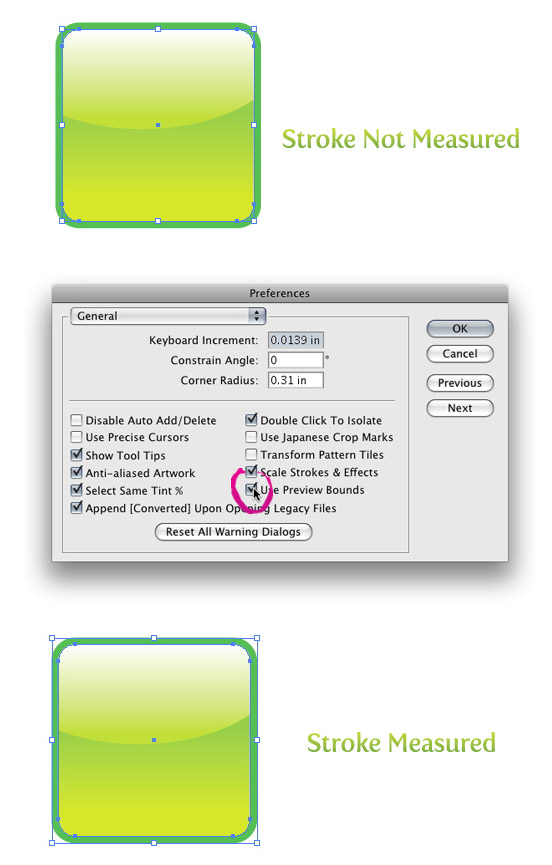
If you are ever needed an object with a stroke to have exact dimensions, you probably got frustrated very quick. By default, Illustrator doesn’t take into account the dimensions of a stroke. You can easily change this by going Illustrator > Preferences > General and check the Use Preview Bound box. Now, Illustrator will take into account the dimensions of strokes, brushes, effects, and so on.


This tip is still helping after all these years!
God bless you. This was driving me up the wall. Thank you very much.
Allan
very usful dear
thank you
OH NO,maybe in Illustrator CS4。
I feel so stupid. I even asked about it in some forum and didn’t get any good answer.
THANK YOU.
Oh man – so much time I could have saved had I known this!
I’ve just been setting the stroke to ‘inside’ which was working for most things, but not all.
Glad to hear it works in older version!
Thank you so much for sharing that!
AI 10 too
Oh nice. Little things like this are frustrating and counter productive. Great tip.
Worked in CS2. Thanks!
Ooh…
nice tip…
I didn’t know that.
Thanks so much! That will be very useful!
Thanks!
I’ll have to check from home. I have CS3 here at work, but CS at home.
I’m not sure, do you have a earlier version? If you do you, that would be awesome if you could check!
Great tip, does this work on all versions of Illustrator?