

I am a huge fan of the updated Appearance panel in the Illustrator CS4. I have really found the Appearance panel to be useful when creating type treatments that I constantly need to repeat. One of these styles is a metal type treatment. This tutorial is pretty similar to the Letterpress Font and Sketchy Font tutorials in that it uses the Appearance panel to create a type treatment that is fully editable when it is done.
Final Image
Below is the final type treatment we will be working towards. You probably have seen many other metal type tutorials, but in this one you will be able to edit the text after the effect is created!

Tutorial Detail
- Program: Adobe Illustrator CS4
- Difficulty: Beginner
- Estimated Completion Time: 15-20 minutes
Step 1
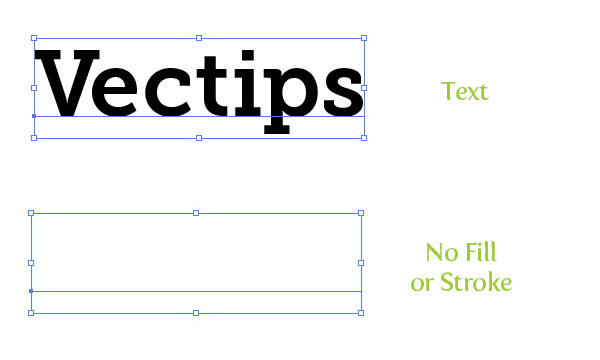
Choose a font (I am using Museo Slab 700) and type out some text with the Type tool (T). I like to start with a clean slate in the Appearance panel, so take off any fill or stroke on the type.
Step 2
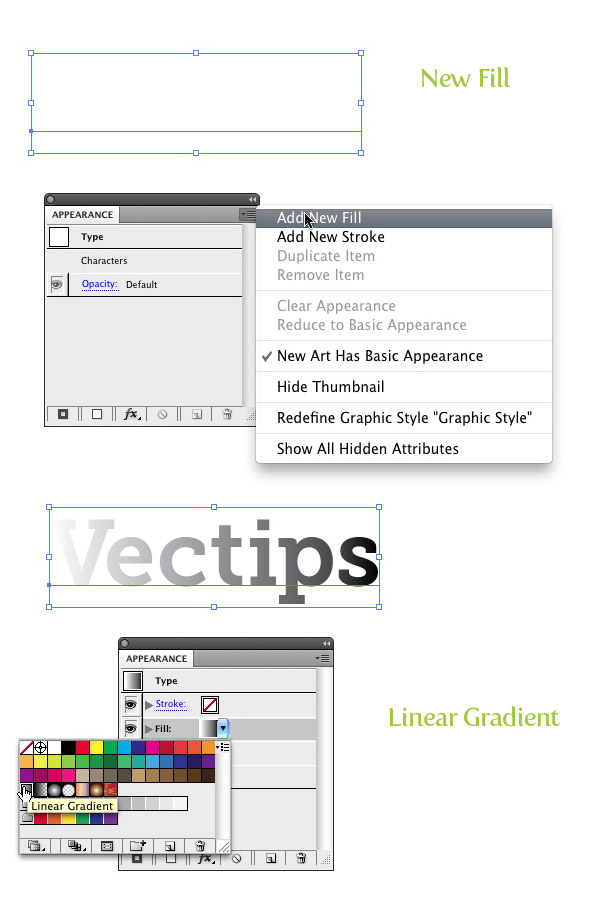
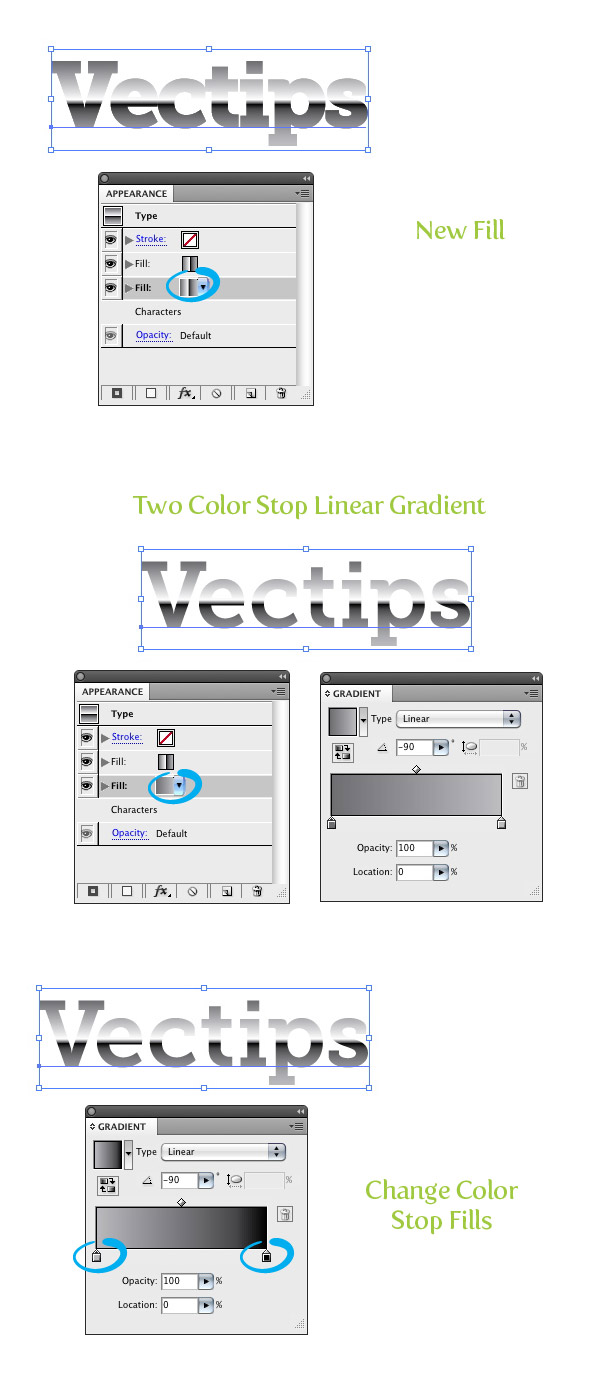
From the pop-up menu of the Appearance panel, choose New Fill. Next, click the swatch thumbnail in the Appearance panel of the new fill and change the swatch to a linear gradient.
Step 3
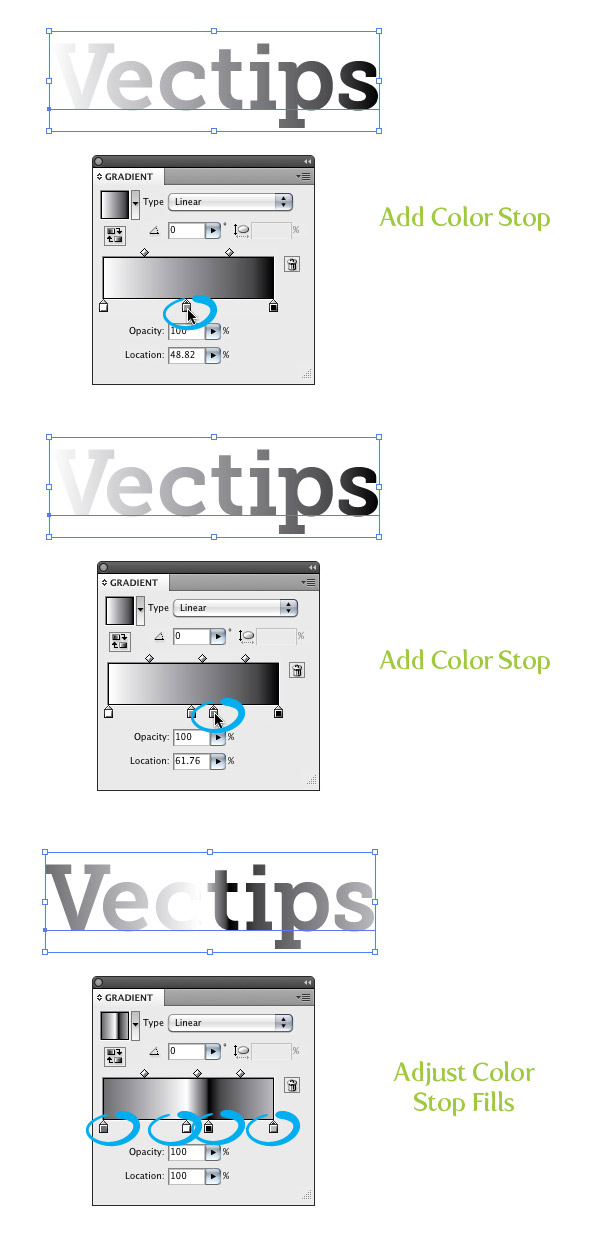
For this step we are going to add two Color Stops to the gradient to give us the metal effect. First click on the Gradient Slider in the Gradient panel around in the middle of the other two Color Stops. Next, add another Color Stop to the Gradient Slider so you have a total of four. Change the first Color Stop to a 70% black, the second to white, the third to 100% black and the last to a 30% black.
Step 4
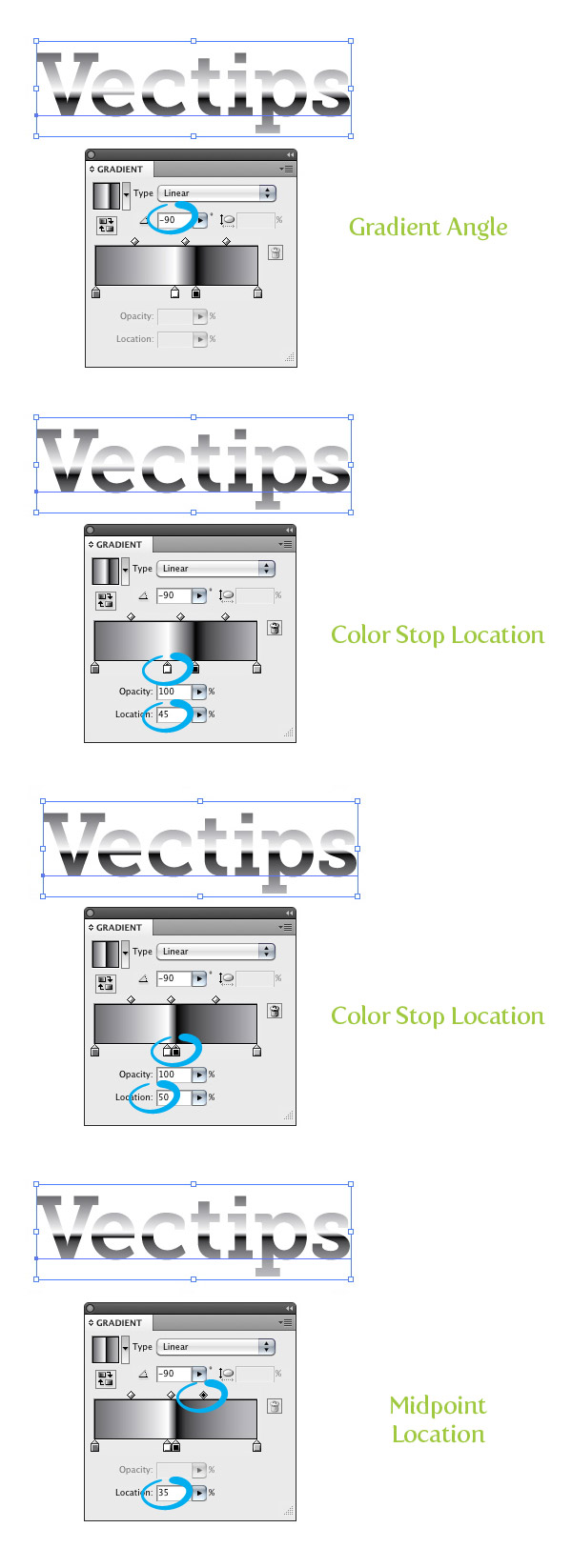
Now that we have the correct Color Stops, we need to adjust the gradient. Within the Gradient panel change the Angle to -90. Next, select the white Color Stop and change the Position to 45%, then select the black Color Stop and change the Position to 50%. Finally, select the Midpoint in-between the black and 30% Colors Stops and change the Location to 35%.
Step 5
From the pop-up menu of the Appearance panel, choose New Fill. Select the second fill in the Appearance panel and change the linear gradient to a two Color Stop linear gradient. Change the first Color Stop to a 32% black and the second to 100% black. Make sure the gradient Angle is set to -90%.
Step 6
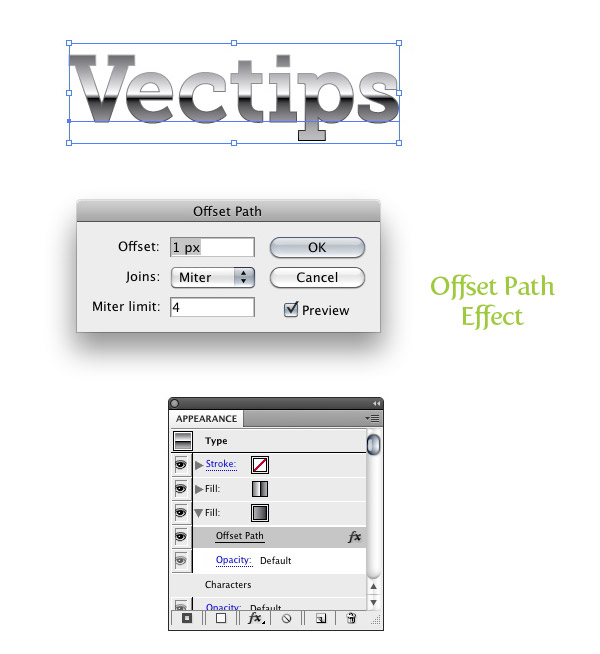
With the new fill still selected in the Appearance panel, go Effect > Path > Offset Path. When the Offset path dialog opens, change the Offset to 1 px. This might be different depending upon the dimensions of your text. If you click the arrow for the latest fill in the Appearance panel you should see the Offset effect under it.
Step 7
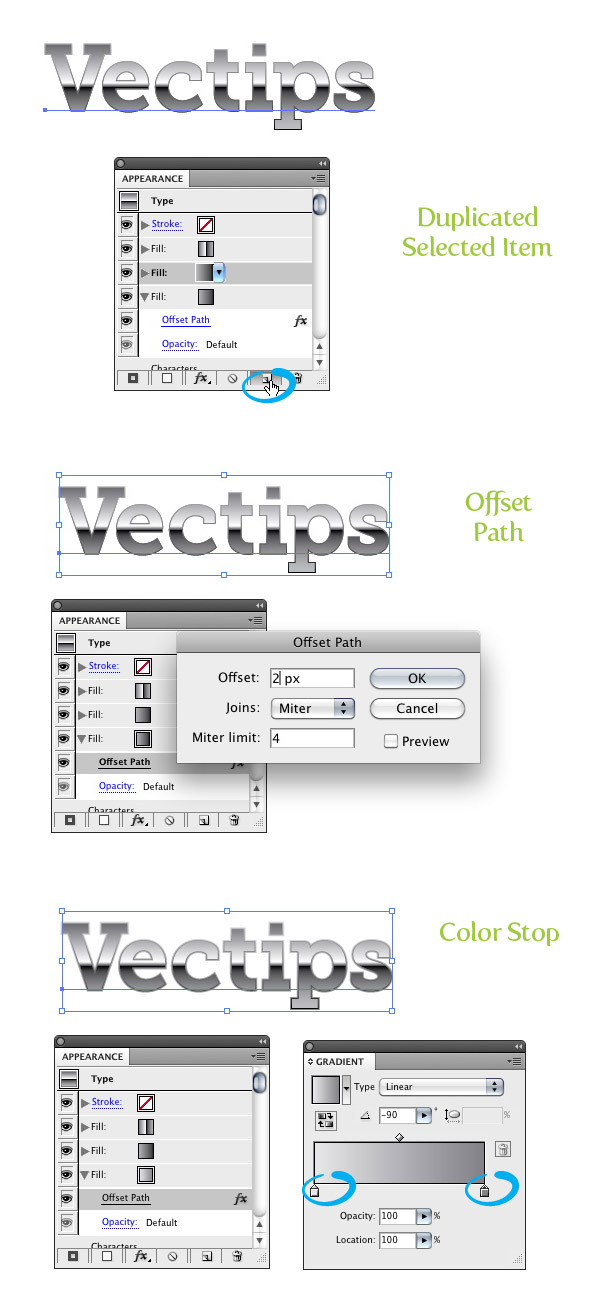
Make sure the two Color Stop fill is selected in the Appearance panel and press the Duplicate Selected Item button from the bottom of the Appearance panel. Select the new copy below the first and click the Offset Path item. When the dialog opens, change the Offset to 2 px. Next Change the first Color Stop in the new fill selection to 10% and the second Color Stop to a 60% black.
Step 8
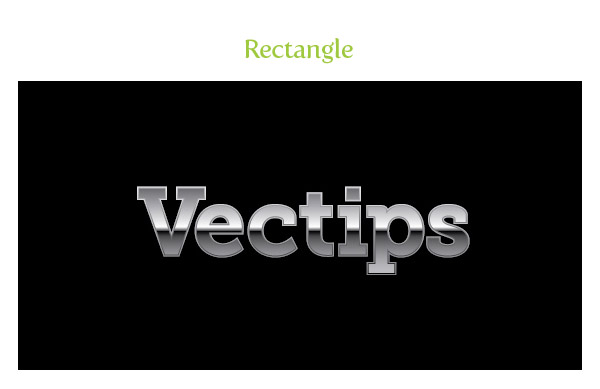
For the next couple of steps it is good idea to have the treatment on a dark background so you can see the effects. Create a rectangle with the Rectangle tool (M) and place it behind the other artwork.
Step 9
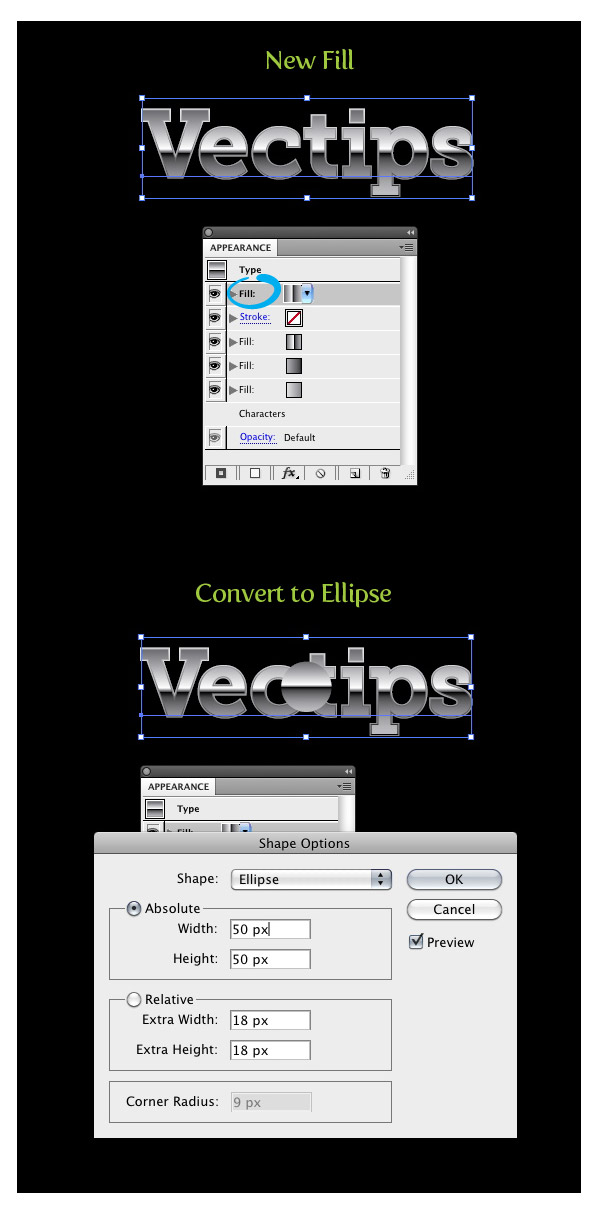
You can stop here if you would like but you can really jazz up the treatment by adding some sprites. The cool thing is you can add these in the Appearance panel as well as the other effects! Start by creating a new fill it the Appearance panel and making sure you select the top most item. Go Effect > Convert to Shape > Ellipse. In the Shape Options dialog, check the Absolute radial button and change the Width and Height to 50px.
Step 10
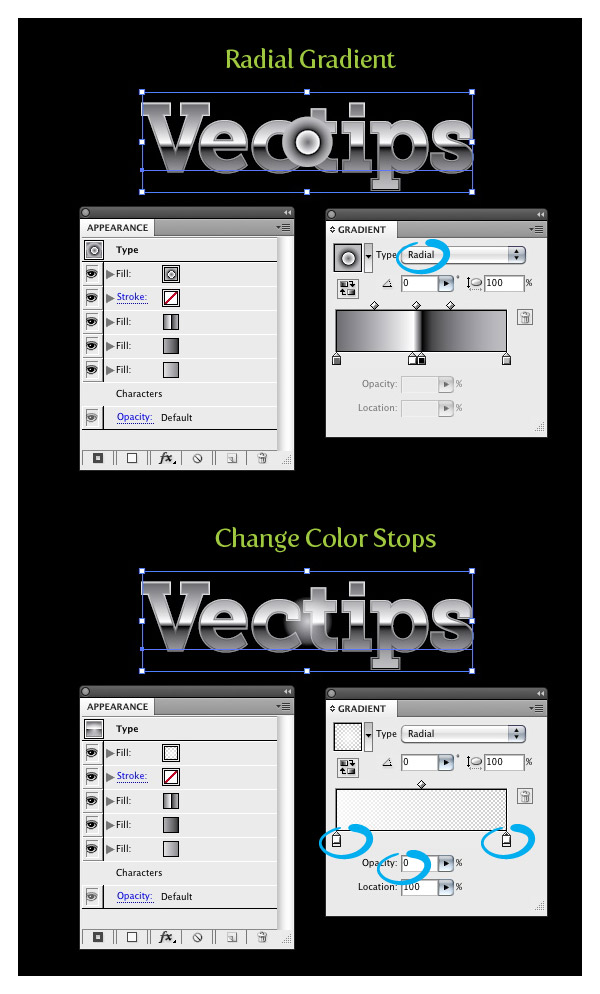
With the new fill still selected, change it to a radial gradient. You only need two Colors Stops for this effect, so delete any other Color Stops in the gradient. Next, change the first Color Stop to white with a 80% Opacity and change the last Color Stop to white with 0% Opacity.
Step 11
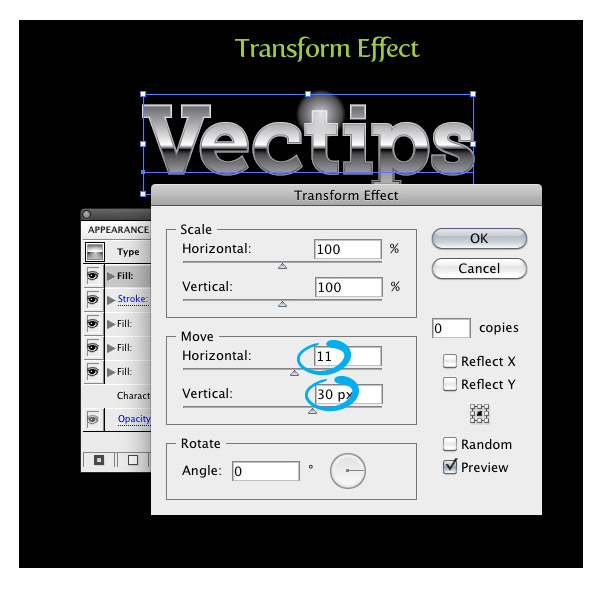
We can position the burst wherever we like. To do this, make sure the same item is selected in the Appearance panel as the previous step and go Effect > Distort & Transform > Transform. In the Transform Effect dialog, change the Move Horizontal and Vertical positions to the desired amount.
Step 12
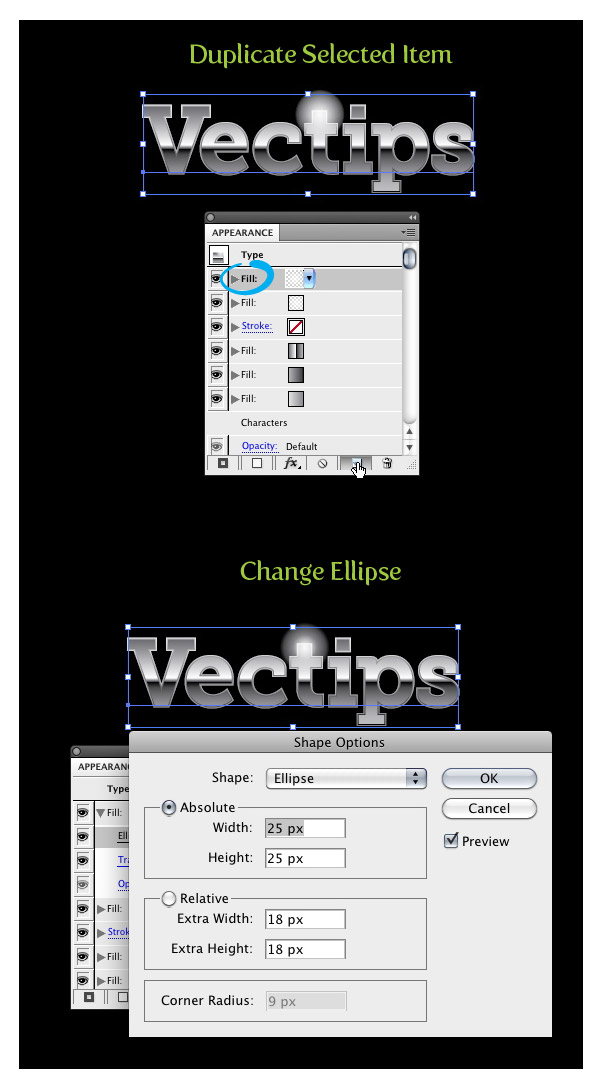
With the latest item select, press the Duplicate Selected Item button in the Appearance panel. Select the new duplicated item and press the arrow to the left of it in the Appearance panel, showing all the effects in the item. Click on Ellipse to bring up the Shape options and change the Absolute Width and Height to 25px.
Step 13
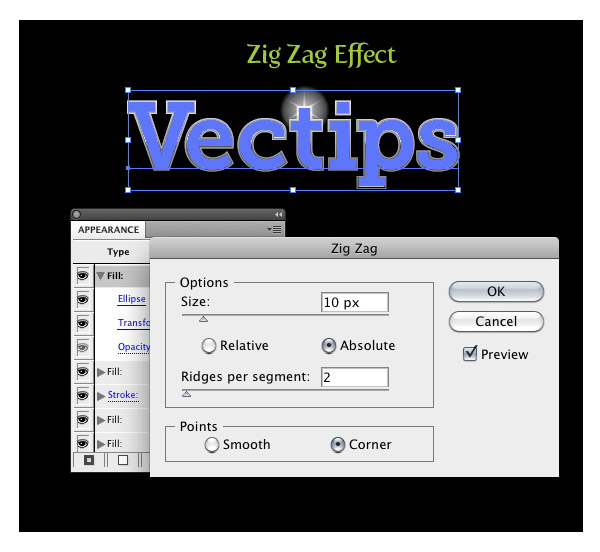
With the adjusted ellipse still selected in the Appearance panel, go Effect > Distort & Transform > Zig Zag. In the Zig Zag dialog, change the Size to 10 px and the Ridges to 2 (you might have to change the Size to more or less depending on the original size of your text).
Step 14
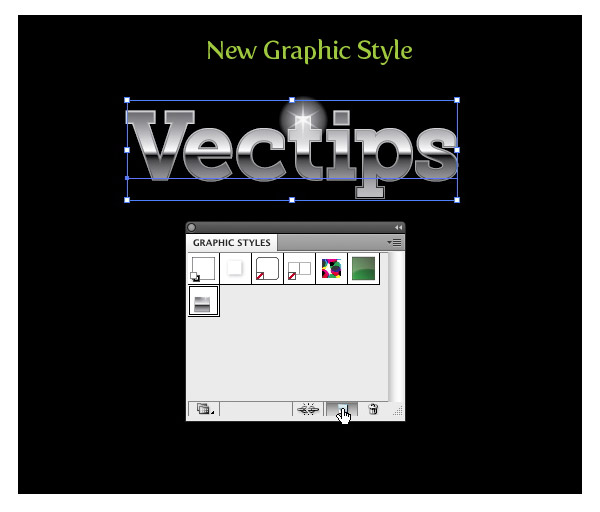
We are done! That was pretty easy. You can easily create this effect without the Appearance panel, but creating this effect like in this tutorial you can easily adjust anything with the text without changing the effect. It is also a good idea to create a Graphic Style for easy implementation to other text and objects within Illustrator. Simply select the text with the metal treatment and press the New Graphic Styles button in the Graphic Styles panel. Now just select some text or other object and select your new Graphic Style!
Final Image
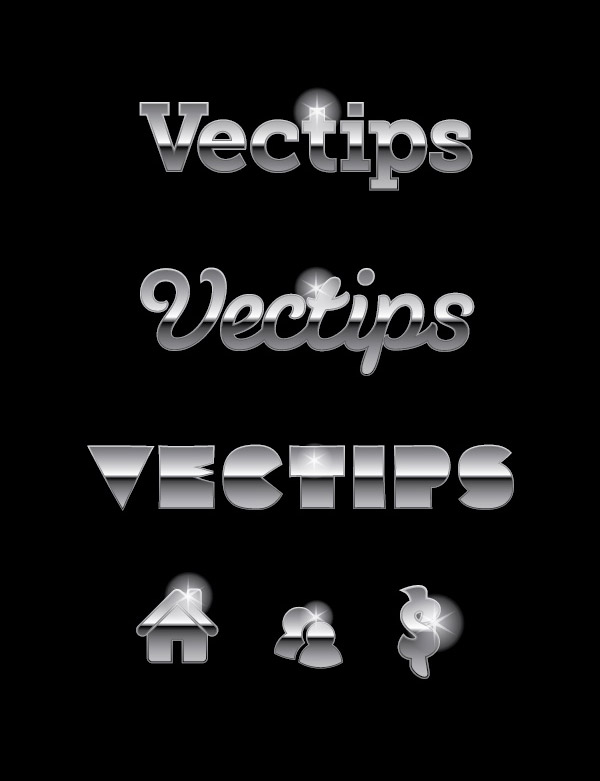
Below is the final image with a couple of other fonts and object with the applied Graphic Style.


Excellent print that can be used for several banner prints as well.
what is the name of the third font??
Great tutorial, very very helpfull! tahnks 🙂
typo at the top: says “so take of any fill or stroke on the type.” Should say “so take OFF any fill or stroke on the type.”
Thanks for catching that! We’ve now updated it accordingly.
Great tutorial! I’ve worked with Photoshop and Fireworks, but I’m only just beginning to get to know Illustrator and Indesign. This tutorial was an eye-opener! using the Appearance panel like this and creating re-usable styles is fantastic!
I’m creating more metallic styles now, just experimenting from this base-style on. Changing colors to produce gold, copper or add texture tot the offset fills for roughened edges, adding glows or shadows… Having great fun here today 😀
Thanks for the great tips! It’s eye opening how we can create nice styles that allow the text to stay editable. I can’t tell you how much time this trick will save me.
Is there anyway of keep this effect on the livetype so I can still alter the spelling etc in indesign?
loved! Thank you so much!!
Nice tutorial. Since this was written, Illustrator CS6 can now do gradients on a stroke, which means you no longer need to duplicate the fill twice and offset it. Just apply a new stroke in the Appearance panel and apply a gradient to it. So you simply need one fill and one stroke instead of two duplicated fills.
Really nice tutorial, i used it to create a company logo for a friend of mine and that worked out fine.
The only thing is that i created this logo on a rather big scale and when i try to downsize the logo the text gets smaller but the outlines don’t. Can you tell me what i am doing wrong, i already tried to set the text to outline but that gave me the same result?
hey nice work.. took me some time to understand .. but the result is really good… thanks..
I’m new to illustrator and I was wondering where you go to find the X% black when creating the gradient in step 3?
Solid gold man! (or steel?) Thanks a tone!
Font looks metallic except bottom half of the letters are black… 🙁
I think you made the same mistake I made the first time. Above he tells you to change colors to 30% black, or 70%black. If you doubleclick the color, you probably changed the top-value (Opacity) to the 30 or 70% mentioned. This results in the end to black bottom halfs. You didn’t change the percentage black, but the transparency of it.
To change a black to a percentage:
If you work in CMYK color like in this tutorial: use the ‘K’ value, that is the last slider of the four sliders you will see. Set it to the 30 or 70%.
If you work in RGB color: Change all three colors, R, G and B to the same amount. Only it works a little reverse: for the darker 70% black, in RGB this would be closer to 30/30/30%, and for the lighter 30%, in RGB you would choose 70/70/70%.
Thanks, I know this is an old article but this is the first tutorial that I’ve tried with Illustrator.
I understood everything except for changing the colors. Changing to CMYK and using K was the easy piece I was missing.
nice tutorials, thanks,
NICE WORKS
thank youuuuu.. i did n it looked great.. thanx 🙂
Thanks man, really help my job here…
Thanks for this tutorial. I am learning a lot.
its really nice and easy for beginners ^_^
Excellent tutorial! Just what I wanted. Clear, easy to follow and great result. I thought you could only do this with outlines and non-editable text so this has saved me LOADS of work. Thank you so much for your time and effort in producing this tutorial. It is much appreciated.
NOT GOOD FOR BEGINNERS. IF YOU ARE GOING TO TELL TO ADD COLOUR STOPS TO GRADIENTS YOU NEED TO EXPLAIN HOW. MORE DETAILS NEEDED FOR BEGINNERS PLEASE.
I think beginners will be able to quickly figure out how to add color stops. Just clicking around will teach them something.
But if they don’t all you have to do is Google it, then continue with the tutorial. not every tutorial can assume this is the first time the user is opening Illustrator.
i think i’m going to use this for my photo watermarks!
Thanks a lot for sharing! ^_^
Better to use it as logo
great work, I m a new graphic designer, I wana learn about website design by which my graphics will add more smoothness to make web designing, would u please give me any advice that how I learn about HTML and CSS
Perfect, thanks
nice illustrator tutorials ……….thanks
http://www.scrapsforever.com
Awesome technique! Just what I was looking for. Thanks!
Hi,
Looks great. But is there a way to download this example?
Nice tut., thanks
Fantastic, have just made up a template using your method and will keep it handy for future projects.
Way to go!
I use Illustrator mostly for web just to make everything scalable. Your tut simplifies a lot of common stuff and taught me to use the fills better. Photoshop is nice for FX, but vector is the way to go IMHO.
Thanks a lot!
I followed the directions three times and I could not get the lettering to look like the example. I then played around with the gradient stops on all three fill layers and finally arrived at something close to the example.
didn’t think there were that many good tutorials for noobs w/illustrator…I was wrong…this one is great!
Easy to follow, with clear screenshots to go with each step!
Keep it up….I hope more people follow your tut style.
Very cool tutorial i like the slight retro feel this metal type effect has.
excellent tutorial! 🙂 really appreciate it. i wanted to learn something like this last year, but i have it referenced now for future metallic objects.
many thanks
paul
Solid tutorial! Thanks for making it.
Thanks for this great tutorial. This is very useful for me.
Just wondering, what is the 2nd font called in your final result image?
I asked the same question in a previous post. The font is called Susa. It’s a great looking font.
Nice. Really nice. I always thought I’d have to create outlines out of type to do crazy styles—this will save a lot of time. Thank you.