
 In today’s tutorial, we’re going to take a quick look behind the process of creating an iMac icon using nothing more than a couple of basic geometric shapes that we’re going to adjust here and there.
So, assuming you already have Illustrator up and running, let’s jump straight into it! Continue reading

 Let’s play with texture in this wood cut text treatment tutorial! We’ll create a fantastic graphic style and apply it to simple text. Complex-looking illustrations are easy when you create your own graphic styles. Let’s do this!




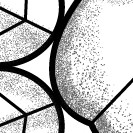 Create a quick and easy set of stipple Illustrator brush files perfect for craeting vector flash art designs ready for tattoos, posters, and more! The techniques explored in this tutorial can be applied to other styles of brush creation as well.
 In today’s tutorial, we’re going to explore the process of creating a folder icon and learn how easy it is to create one using a couple of basic geometric shapes that we’re going to adjust here and there.
 In today’s tutorial, we’re going to see how easy it is to create an image file icon using nothing more than a couple of basic geometric shapes.