
 In the following tutorial, you will learn how to create a wire pattern brush and how to use it to create a nice USB vector text effect in Adobe Illustrator. For starters, you will learn how to set up a simple grid and how to create a bunch of pixel perfect shapes using basic tools and effects. Using basic blending and vector shape building techniques along with some simple Transform effects, you will learn how to create the usb connector. Finally, you will learn how to turn all these shapes into a simple pattern brush and how to create the USB vector text effect.
Turn Drab Text Into an Amazing Design Using This Simple USB Vector Text Effect
- Tutorials
- February 20th, 2020
- 32 Comments

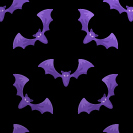 In the following tutorial you will learn how to create a pretty detailed Bat Pattern Vector in Adobe Illustrator. For starters you will learn how to setup a simple grid and how to create the main shape using pixel perfect shapes, basic vector shape building techniques and the Live Corners feature. Moving on you will learn how to add subtle shading and highlights for your bat shape using basic blending techniques along with the brush tool. Finally, you will learn how to prepare, save and easily edit your pattern.
 In the following steps, you will learn how to create a simple stopwatch illustration in Adobe Illustrator. For starters, you will learn how to prepare your document and how to set up a simple grid. Next using basic tools and effects along with the Appearance panel and the Pathfinder panel, you will learn how to create the main shapes of the stopwatch. Taking full advantage of the Appearance panel and using several Transform and Warp effects, you will learn how to make the smaller stopwatch components and how to add subtle shading and highlights. Finally, you will learn how to easily recolor your stopwatch.
 In the following tutorial, you will learn how to create a simple web ribbon vector in Adobe Illustrator. For starters you will learn how to set up a simple grid and how to create the main shapes using basic tools and vector shape building techniques. Next using subtle linear and radial gradients along with some simple blending techniques, you will learn how to add shading and highlights for your ribbon. Finally using some simple Warp effects, we’ll add a little dynamism for the final ribbon.
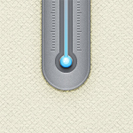 In the following tutorial, you will learn how to create a simple thermometer illustration in Adobe Illustrator. For starters you will learn how to set up a simple grid, how to create the pixel perfect main shape and how to add subtle shading. Next using basic blending and vector shape building techniques and taking full advantage of the Appearance panel, you will learn how to create the thermometer tube. Finally, you will learn how to create a simple grid using two tiny paths and a bunch of Transform effects.
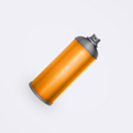 In the following tutorial you will learn how to create a detailed spray can vector icon in Adobe Illustrator. For starters, you will find out how to set a a simple grid and how to create a bunch of pixel perfect shapes using basic tools and effects. Once you have the main spray can vector icon, you will learn how to work with complex gradients and how to add subtle shadows and highlights using basic blending and vector shape building techniques. Finally, you will learn how to create a simple mesh and how to easily recolor your spray can vector icon.
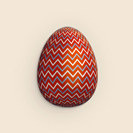 In the following Easter egg vector tutorial you will learn how to create a detailed Easter egg illustration in Adobe Illustrator. In the first steps you will learn how to set up a simple grid and how to save a simple symbol. Taking full advantage of the Snap to Grid feature and using basic vector shape building techniques you will learn how to create your main shapes. Next, you’ll learn how to add a complex 3D Revolve effect. Moving on you’ll add shading and highlights using basic blending techniques and a bunch of simple effects. Finally, you will learn how to add a simple background.