
 In the following Easy Chart Vector tutorial you will learn how to create a simple line graph chart vector in Adobe Illustrator. In the first steps you will learn how to set up a simple grid and how to create the main shapes using basic tools and vector shapes building techniques. Next, you will learn how to ease your work using the Transform effect and how to add a bunch of text. Finally, you will learn how create a simple blend and how to take full advantage of the Appearance panel.
Wow Your Clients with this Easy Chart Vector!
- Tutorials
- November 12th, 2020
- 30 Comments

 In the following tutorial you will learn how to create your own gingham pattern vector in Adobe Illustrator, and you’ll get some tips for using it. For starters you will learn how to set up a simple grid for your gingham pattern vector. Using this gingham pattern, a single rectangle and taking full advantage of the Appearance panel you will learn how to create a menu cover that you could edit and take in any direction.
 In the following Power Button vector tutorial, you will learn how to create a simple power button in Adobe Illustrator. In the beginning you will learn how to set up a simple grid and how to create and center a simple rectangle that will make up your background. Next, using basic vector shape building techniques you will learn how to create the circle and the compound path that will make up your power button. Finally, taking full advantage of the Appearance panel, you will learn how to add color, shading, highlights and depth for your shapes.
 In the following tutorial you will learn how to create a highlighter text effect vector in Adobe Illustrator using a set of detailed pattern brushes.
 In the following tutorial you will learn how to create a set of download buttons in Adobe Illustrator. For starters you will learn how to set up a simple grid. Once your document is set up, you will create the main shapes using basic tools and effects along with some simple vector shape building techniques. Next, you will learn how to take full advantage of the Appearance panel, how to use a built-in pattern and how to edit a small piece of text. Finally, using basic blending techniques you will learn how to easily recolor your buttons.
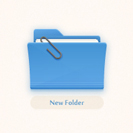 Ever have problems staying organized? I know I do, so I’m here to help! In the following tutorial you will learn how to create a detailed folder vector icon in Adobe Illustrator. For starters you will learn how to setup a simple grid and how to create the main shapes using basic tools and effect. Moving on, you will learn how to add subtle shading and highlights using basic blending and vector shape building techniques along with some linear gradients and simple effects. Using the Rounded Corners effects and some basic stroke features you will learn how to create a simple paperclip and how to easily mask it. Finally, you will learn how to add a subtle shadow for the overall icon and how to easily recolor it. Getting all your things in order will be up to you. ; )
 In the following tutorial, you will learn how to create a grungy web badge in Adobe Illustrator. For starters you will learn how to setup a simple grid and how to easily center the starting shapes using the Align panel. Next, taking full advantage of the Appearance panel and using some basic masking and vector shape building techniques, you will learn how to create the two main shapes. Moving on, using a built-in art brush and some new masking techniques, you will learn how to add a that grungy effect. Using some Type tools along with several Drop Shadow effects, you will learn how to add the text. Finally, you can learn how to easily recolor your entire web badge.