

If you found the previous Letterpress, Sketchy, and Metal type treatment tutorials useful, then you are going to like this Stitched Label Type tutorial. Like the previous tutorials, this one relies heavily on the Appearance panel, making it easy to edit the text and apply the treatment to other fonts and vector elements.
Final Image: Stitched Label Type Treatment
Below is the final stitched label type treatment we will be working towards.

Tutorial Detail: Stitched Label Type Treatment
- Program: Adobe Illustrator CS4
- Difficulty: Intermediate
- Topics Covered: Appearance panel, Effects, gradients
- Estimated Completion Time: 15-20 minutes
Step 1: Stitched Label Type Treatment
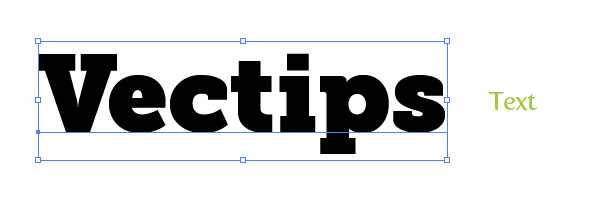
To start off this Stitched Label Type Treatment Tutorial, let’s create a new document and without the Type tool (T) and type out some text. Change the font to whatever you like. I suggest using something heavy like the Museo Slab 1000 font I am using.
Step 2
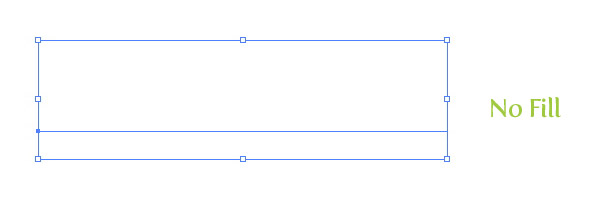
Before we start adding new fills and strokes from the Appearance panel, it is good to start with a clean slate. Select you text and take off any fill or stroke.
Step 3
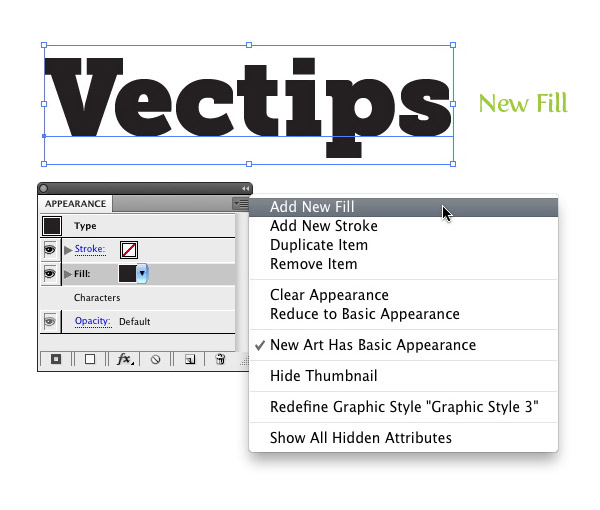
From the pop-up menu of the Appearance panel, select New Fill. Keep the default black color for now, we will be changing it later on in the tutorial.
Step 4
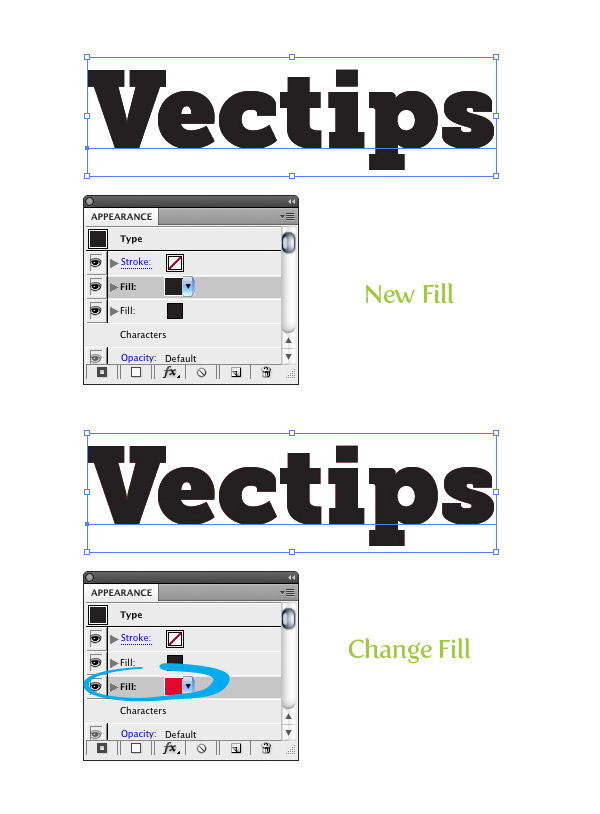
Again, create another New Fill From the Appearance panel. Select the second fill in the Appearance panel and change the fill to a red color.
Step 5
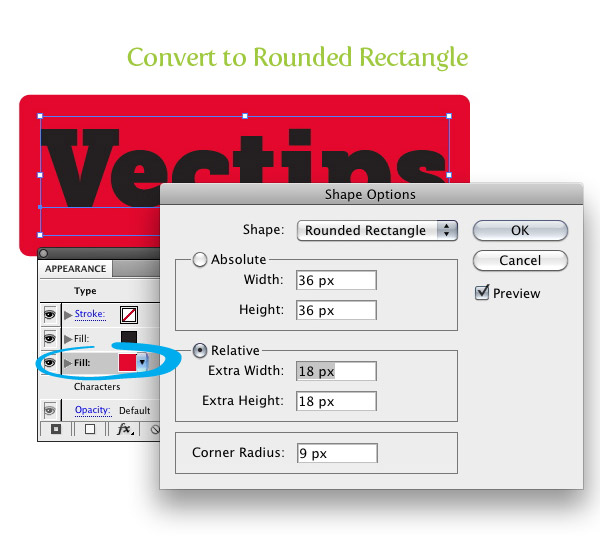
Select the red fill in the Appearance panel then go Effect > Convert To Shape > Rounded Rectangle. When the Shape Options dialog opens select the Relative radial button and change the Extra Width and Extra Height to 18 px. These number might be higher or lower depending on the dimensions of you text.
Step 6
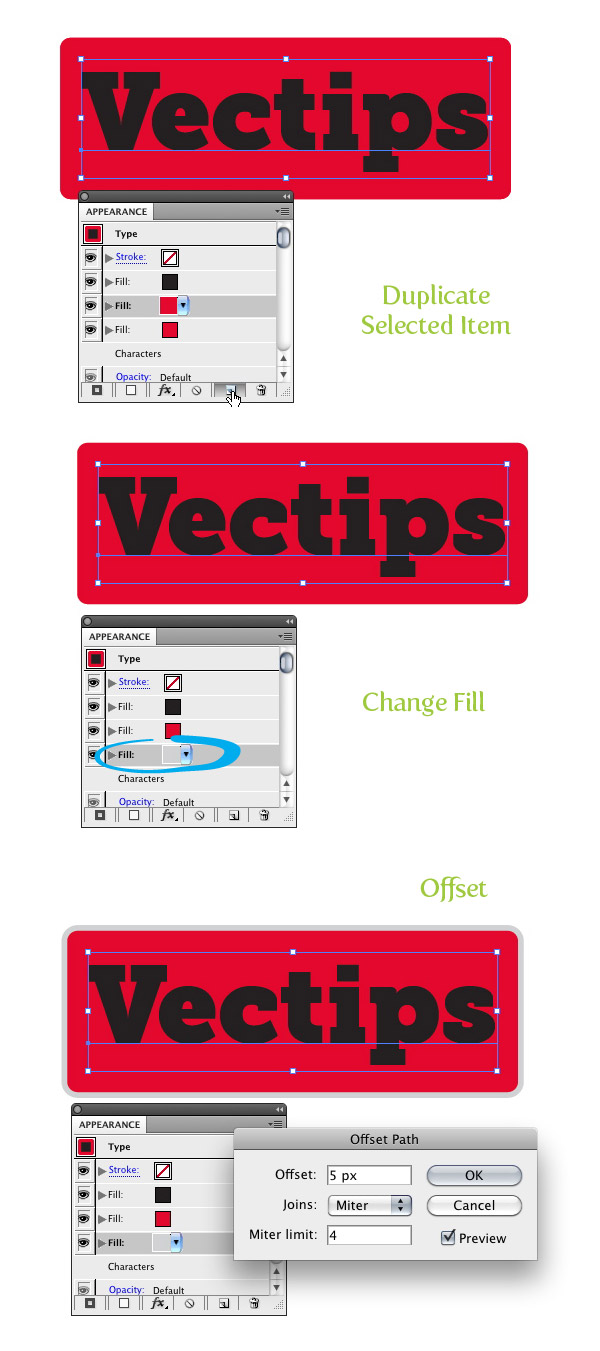
With the red fill selected in the Appearance panel, press the Duplicate Selected Item button at the bottom of the Appearance panel. Change the last red fill in the list to a gray color. With the gray fill still selected, go Effect > Path > Offset and change the Offset in the dialog to 5 px. Just like in the previous step this numerical values might change depending on the size of your text.
Step 7
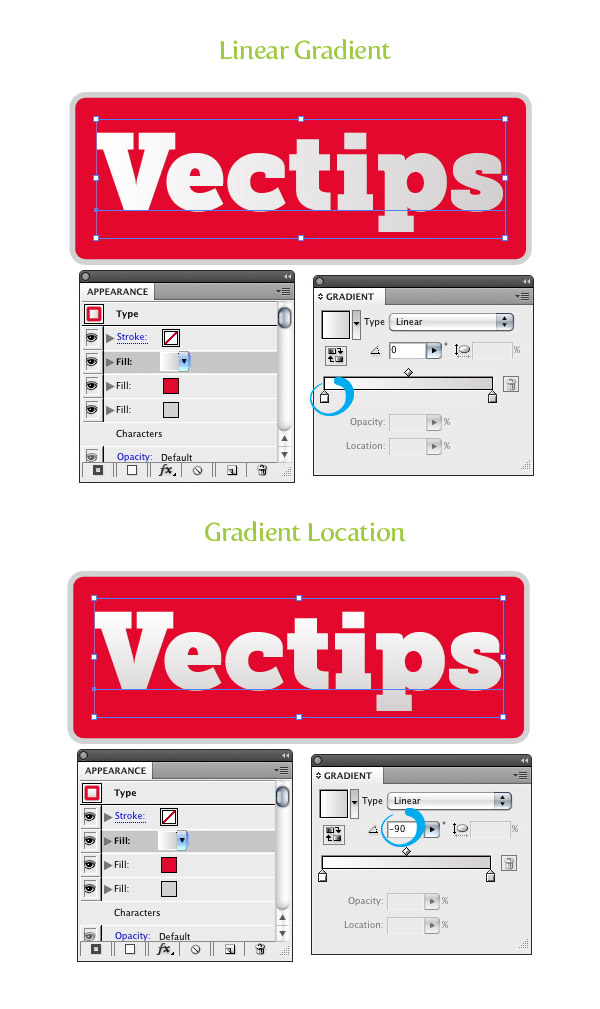
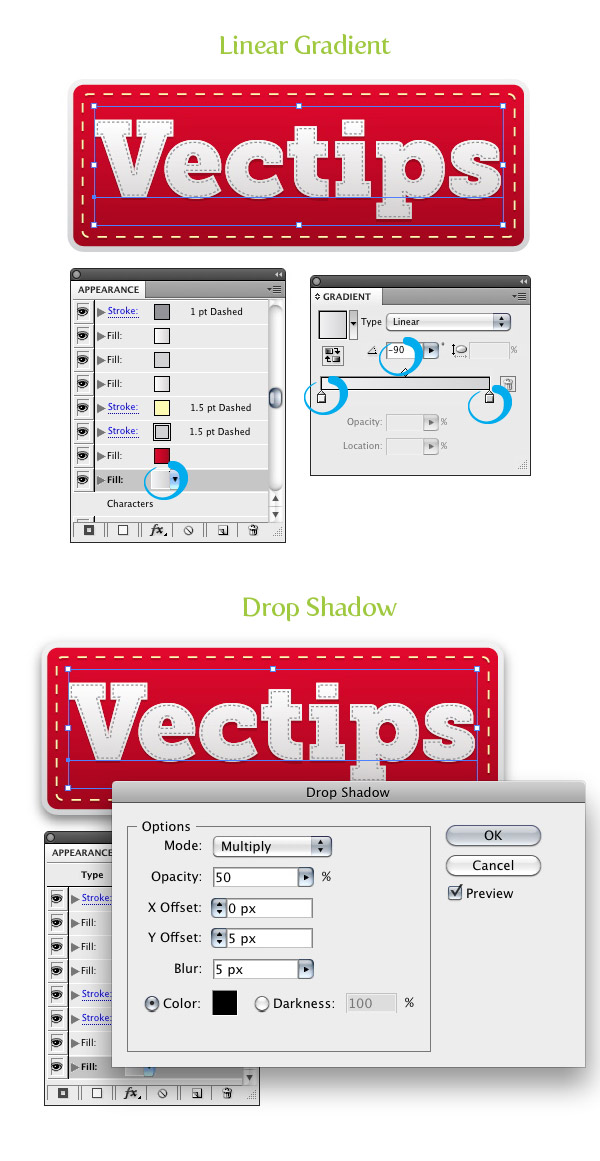
Now that we have all the major shapes done, we can start by add some detail and stitching to the text. To start, select the first black fill in the Appearance panel. Change the fill to a liner gradient with the first color stop in the gradient white and the second color stop a light gray. From the Gradient panel change the Angle of the gradient to -90.
Step 8
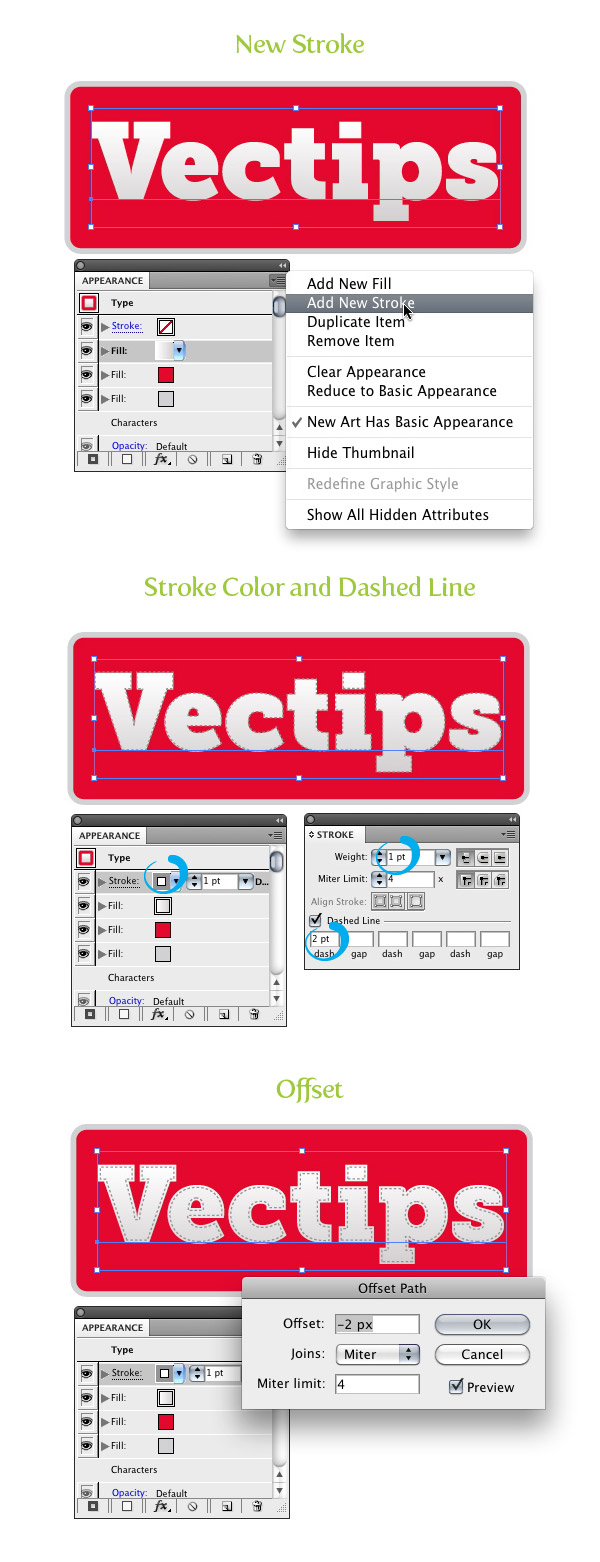
With the text selected, choose New Stroke from the pop-up menu of the Appearance panel. Change the color of the stroke to gray, set the Weight to 1pt, check the Dashed Line checkbox, and input 2 pt in the first Dash filed of the Stroke panel. Next, go Effect > Path > Offset and change the Offset in the dialog to -2 px.
Step 9
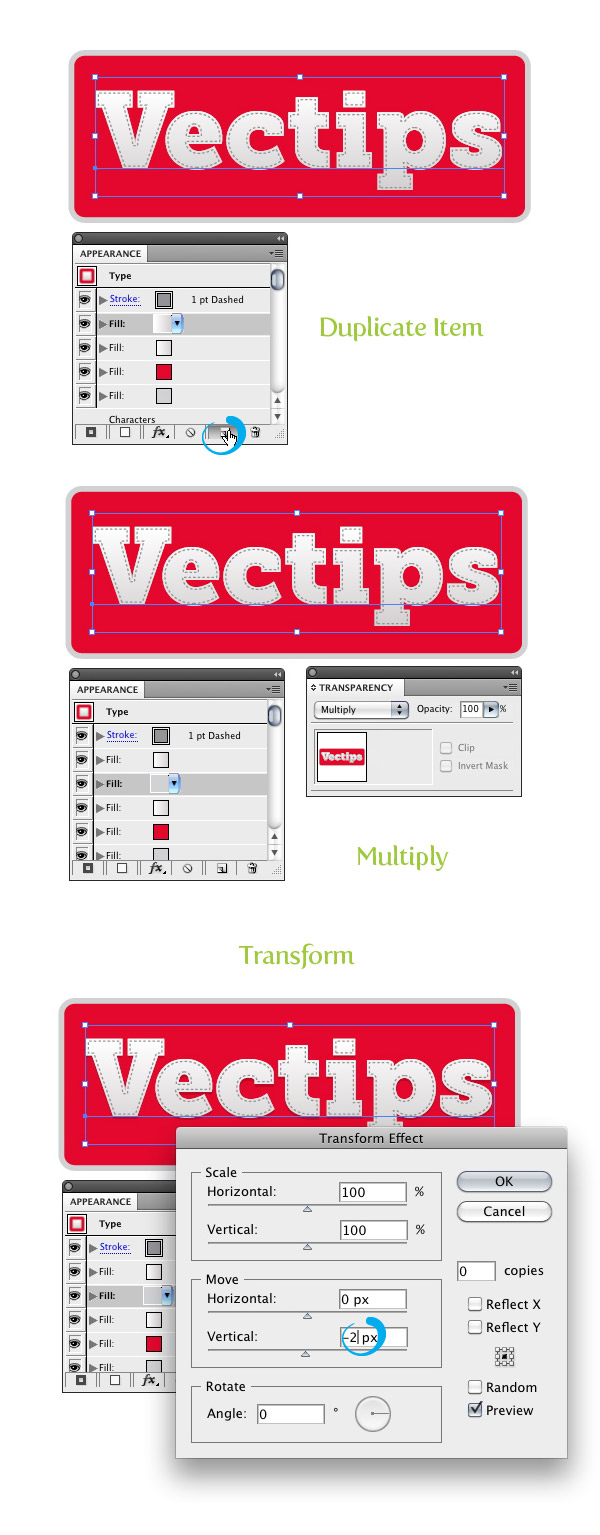
Select the main white text linear gradient fill in the Appearance panel and press the Duplicate Selected Item button. Select the second white text gradient, fill it with a light gray and choose Multiply for the Blending Mode from the Transparency panel. Next go Effect > Distort & Transform > Transform. With the Transform dialog open, change the Vertical Move to -2 px.
Step 10
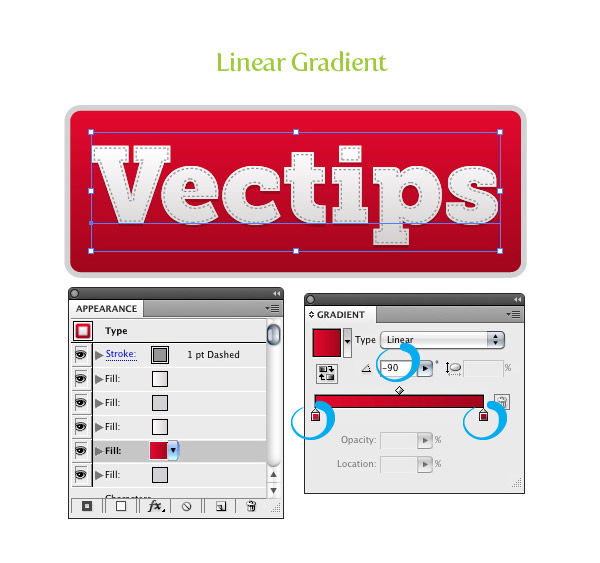
Select the red color fill from the Appearance panel and change it to a linear gradient. From the Gradient panel, change the first color stop to red, the second to dark red, and change the Location to -90.
Step 11
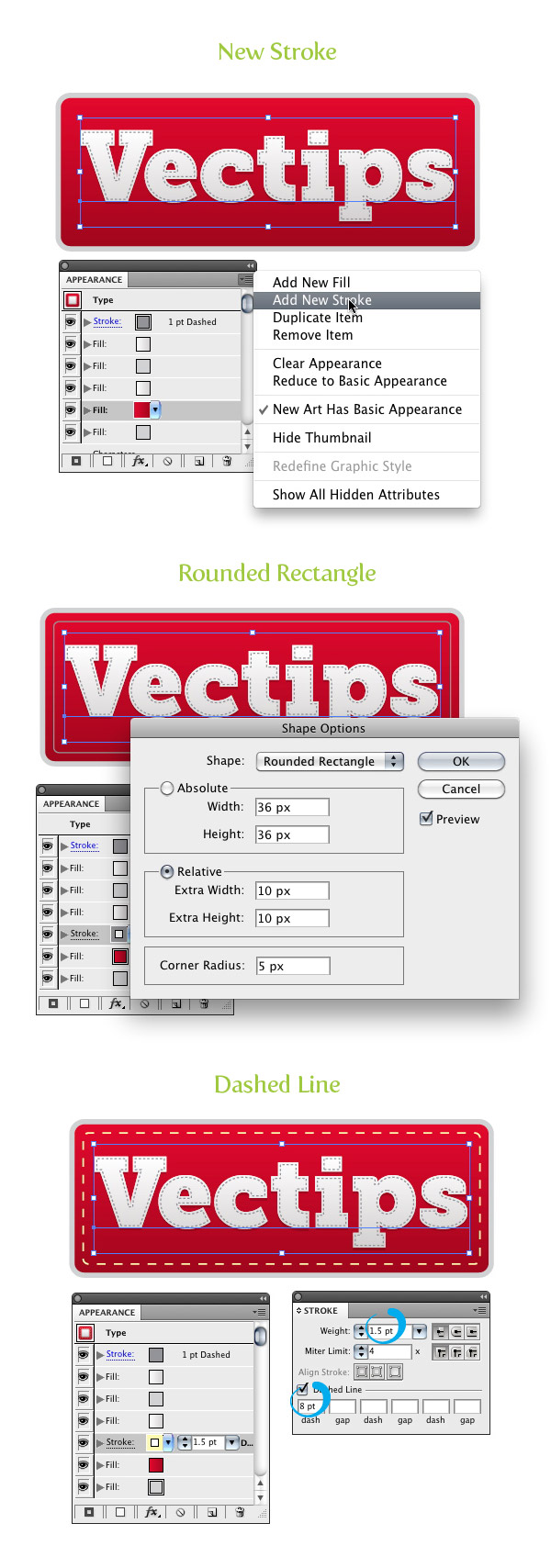
From the pop-up menu of the Appearance panel, choose New Stroke. Next, Go Effect > Convert to Shape > Rounded Rectangle, change the Extra Width and Height to 10 px, and change to Corner Radius to 5 px. Change the stroke to a light yellow color, change the weight to 1.5 pt, and change the Dashed Line value to 8 pt.
Step 12
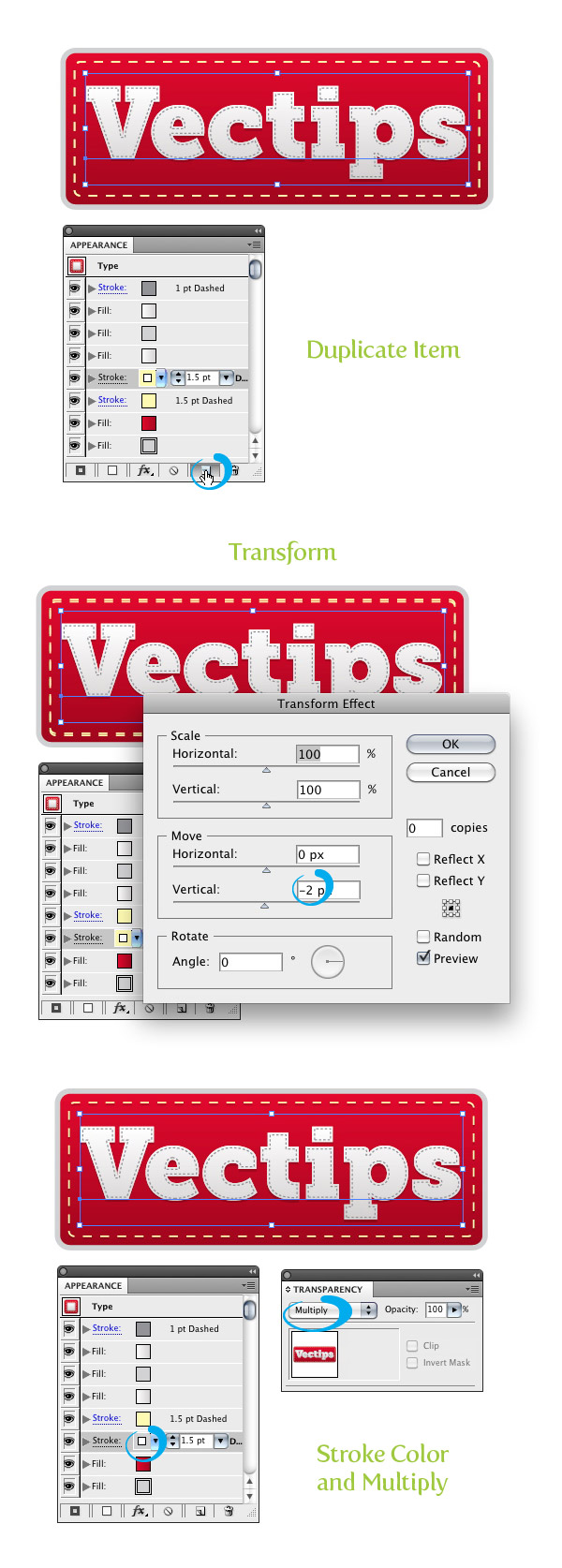
With the yellow stroke selected, press the Duplicate Selected Item button in the Appearance panel. Make sure you have the second yellow stroke selected and go Effect > Distort & Transform > Transform. In the dialog, change the Vertical Move to -2 px. Next, change the stroke color to a light gray and set the Blending Mode to Multiply.
Step 13
Select the last fill in the Appearance panel list, change the fill to a linear gradient, change the first color stop a light gray, the second color stop to a gray color, and change the location of the gradient to -90 from the gradient panel. With the last fill still selected, go Effect > Stylize > Drop Shadow. In the Drop Shadow dialog, change the Opacity to 50, X Offset to 0, Y Offset to 5 px, and the Blur to 5 px.
Final Image: Stitched Label Type Treatment
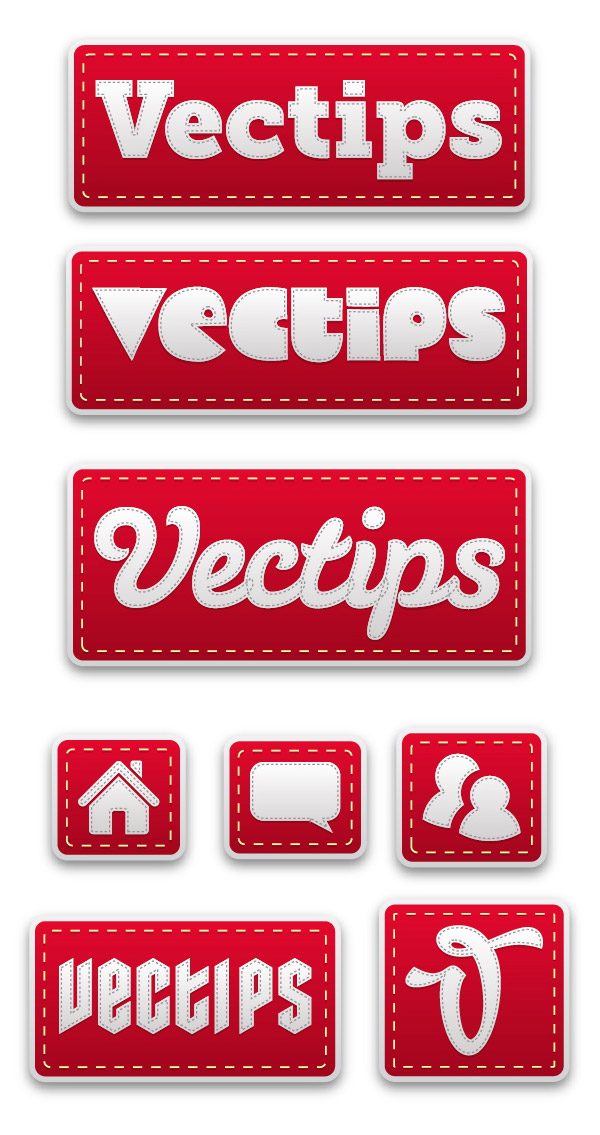
Now we have a nice stitched label type treatment. Even better, it is fully editable! You can change the font or even apply it to other vector objects. I suggest creating a Graphic Style to make applying the treatment extremely easy. Simply select your text treatment and press the New Graphic Style button in the Graphic Styles panel. Below are some examples of different text and icons. Have fun!


It’s best to participate in a contest for among the best blogs on the web. I’ll recommend this web site!
I am not sure where you’re getting your info, but good topic. I needs to spend some time learning much more or understanding more. Thanks for wonderful info I was looking for this info for my mission.
This is a brilliant and very helpful tutorial! Thanks so much for sharing!
Well I definitely enjoyed studying it. This tip provided by you is very effective for good planning.
I would like to thank you for the efforts you have put in writing this blog. I’m hoping the same high-grade web site post from you in the upcoming as well. Actually your creative writing abilities has encouraged me to get my own website now. Really the blogging is spreading its wings fast. Your write up is a great example of it.
nice tutorial, i must try it. I followed it all to a t, but stumbled at adding a gradient to the rectangle without losing my swatch colour
Thanks very much for this tutorial) I followed it all to a t, but stumbled at adding a gradient to the rectangle without losing my swatch colour
Hello, you used to write fantastic, but the last few posts have been kinda boring… I miss your tremendous writings. Past several posts are just a little out of track! come on!
In this great pattern of things you receive a B+ for hard work. Where exactly you lost us was first on all the facts. You know, it is said, details make or break the argument.. And that couldn’t be more true at this point. Having said that, allow me inform you what exactly did give good results. Your authoring is certainly very convincing and this is possibly the reason why I am making an effort in order to comment. I do not make it a regular habit of doing that. Next, while I can easily notice the jumps in reasoning you make, I am definitely not sure of how you seem to unite your points which produce the conclusion. For the moment I will subscribe to your point but hope in the foreseeable future you link your dots better.
Thanks , I’ve just been looking for info about this topic for ages and yours is the greatest I have discovered so far. But, what about the conclusion? Are you sure about the source?
thanks for tutorial
nice tutorial
Nice to see this article , it’s so more informative Information. Thanks for sharing.
thanks bro. your article is very best. is easy for audiens.thanks you
whoaaa nice share broo
stuff right here! Good luck for the following!
Very detailed and useful tutorial!
Wow, nice tutorial. Thank!
Post Very details. Amazing and useful. Love this tuts so much..
Very details. Amazing and useful. Love this tuts so much.. nice broh
its very usefull, thank you
i see tutorial on 2020. awesome bro
I like your post.
nice article, so thank you for sharing
Excellent tutorial!
Great work.
thanks for this very nice tutorial
i like this discussion
Wonderful illustrated information. I thank you for that. No doubt it will be very useful for my future projects.
Thanks for yout tutor!
Hi there, thanks for sharing. Love every tutorial
This so great, thanks for making this quality tutorial
Couldnt agree more lads
Very good tutorial. thanks
This is amazing..
it’is a great info for me..
it really inspired me, and I became curious to try it
Clear!!!
Very detail and useful for someone who is new to Illustrator like me. Thanks Bro.
Me too mate, I love this tutor. Decent tbh, needed more like this imo
Very good article. It could be a very helpful tutorial, I will share it so other people also read it.
Awesome tutorial! And i love the fact that storing the settings in a graphic style makes applying it a snap! really super useful, thanks
Very details. Amazing and useful. Love this tuts so much..
awesome tutorial, thanks.
i like this article
Very cool and detailed tutorial, i like it and maybe will try next time 😀 But for now i’m not using AI anymore just photoshop tough.
Nice info, thanks
nice tutorial
Nice
Very good for open my mind
Best Tutorial
Thanks
I watched several videos on youtube but i couldn’t figure it out ( I am a beginner thus the probability to not success to make it is higher hahaha) ! So grateful i found this article!!! You really help me. I skipped some of the steps because i just want to learn and create the rectangular stitching.
From Malaysia with love!
Awesome Ideas!
Nice tutorials, thanks for sharing.
It is very nice!
Awesome tutorial, thanks!
Hi, nice tutorial,
but in your “STEP 1” you written the sentence
“Create a new document and without the Type tool (T) ”
it is “without” or “with” the Type tool(T) 😛
Awesome! Thanks for sharing. I’ll try it right away 🙂
I LOVE this effect. It was an easy tutorial and now I can use this graphic style to build buttons etc. in a rush. Thanks!!
Wow I love the result of this tutorial!
Here is my work variation in deviantArt: http://fav.me/d6jxjyt
I kind of rushed through the steps but still made it =)
Sorry, wrong link previously.
Here we go: http://fav.me/d6k205g
Great tutorial
nice tutorial loved it
Thanks very much. This is awesome. But I want to know it in other way, Is that it possible ?
Sweet! Great Tut.
Really nice tutorial! Where can i get the symbols in the example? The house, the persons etc?
Nice tutorial dude I love your creative style. very nice
I’m having real trouble with this. On the step where you create the rounded rectangle.. nothing happens. I’ve tried it with a few other dimensions but nothing ever shows up. Can anyone help?
Make sure you have your text selected when you do this. A way to check this is by seeing if you have the preview option available in the shape options popup that you get after going to Effect>Convert To Shape>Rounded Rectangle.
by the way – I forget to mention, at the top tool bar, there is a small triangle and when I hover over it it says
‘top most fill/stroke is not active, click here to make active’ but when I click the stitch does not become visible and nothing noticeable has changed..
Hi there,
Thanks very much for this tutorial) I followed it all to a t, but stumbled at adding a gradient to the rectangle without losing my swatch colour…so I had to google it and found another tutorial,
but after that I am stuck on adding the last stitch line to the rectangle. For some reason, it isn’t showing up at all…I applied the yellow colour, set the weight etc as instructed but nothing!? So I thought, ah, I must have to offset it in the effects>path..but no – nothing is working! And I was so looking forward to that final touch…do you have any ideas as to what I have done wrong?
Bravo 🙂
Tutorial is a clear, simple and useful. Thanks for sharing. Congratulations on a job well done
(sorry, didn’t mean to reply to a specific individual)
This is exactly what I have been looking for…Anyone know how to achieve a similar effect in Indesign, or failing that, a way to transfer the graphic ‘style’ across (of the stitched label text) from Illustrator to Indesign?
I’m creating a childrens book, and I think this style would look great for section headers, but I don’t really want to jump back and forth too much between programs.
thanks, any suggestions are welcome and appreciated.. oh, and great tutorial again btw I’m using CS5
Man you rock!! Love the work and many thanks for sharing
Thanks…….
NICE Work…… best of luck
great tuts my friend. really appreciate you sharing the knowledge.
Thank you for a very informative and easy-to-follow tutorial. I appreciate the time and effort you put into helping some of us AI novices.
Thank you for this great tutorial. Amazing.
i ment the font for the first picture, the retro looking type of V …it is the 5th down and opposite vectips and diagonally acroos of the speechbubble in the final images
by the way this site is amazing ……..keep it up
what is the vont of the retro type v letter,
Thanks for tutorial. Its very usefull, i start learn used illustrator with ur tutrorial. Very clearly explain..:D
Amazing tutorial. It’s similar to my logo, which needs an update, so this will be very useful.
Thanks
thank u very much. great tutorial
hi, i finally created a header for my website using this tutorial. but i don’t know how to save it so as not to lose details? thanks you!
IT SEEEMS TO ME THAT YOU HAVE A GREAT ART WORK (:
love it !
nice one, thanx
I’d appreciate any help, I cannot get the offset path to be active in my dropdown.
For example, I try to offset the dashed stroke on the text, and I cannot get to the offset path because it is greyed out.
I’m working with Illustrator CS4.
🙂
I love it!
One of the best illustrator tutorials ive read, thank you.
Does anyone know which font he is using on the Final Example, the third font down ( the script/handwritten one. If anyone knows it would be greatly appreciated if you could tell me what the name is and where I can find it. Thanks!
Seriously, this looks totally awesome! Thank you so much for sharing man (:
Here’s my outcome http://i56.tinypic.com/2lx8hl4.jpg
thanks again !
Sweeeeeeeeettt!!!!! You´ve rocked my world!! 😀 thanks!
Wow
that is going to change the way i work
amazing
thanks
Very details. Amazing and useful. Love this tuts so much..
Thank you so much for this tutorial.
I’m learning Adobe Illustrator with this.
Thanx for this great tut, i just begin to work more with illustrator…
am a photoshop guy
t to create different results.
Cool one.
such a great tutorial! thanks
Been searching for such tutorial for ages! Thanks so much!
Your tutorials are the best! I’ve been looking everywhere for tuts on Type effects and Illustrator…so happy to have stumbled across this. Just an hour or two on your site, and I feel comfortable with the Appearance panel. Thank you!
greate sample cong
Best you could edit the blog subject title Create A Editable Stitched Label Type Treatment In Illustrator | Vectips to something more suited for your subject you make. I loved the post yet.
What font was used in the middle one of the final image? it’s great tut
It is called Susa
Contrary to what other people are saying I think your website could seriously use some work. I can’t even work out how to subscribe to your RSS.
Great post. Now I will also apply this stitched label type treatment. Thanks for sharing.
woohoo!!
Thank you! I’ve been looking for a tut for this for a minute now. Here’s what my turned out like.
wow this is great dude
Must say, you are the Jedi of appearances panel! I used to outline the text to get all sorts of effects, I feel so dumb now :D. There are so many text effect tuts for Photoshop but not enough for Illustrator.
I also appreciate your attention to details, thank you so much and keep them coming!
The end result looks stunning. Love it 🙂 Nice tutorial. Thanks for sharing your knowledge.
I am a big fan of all your Appearance Panel tutorials!
thanks for the tuts… it’s make me clear on how to done my banner…
i love this Tutorial it’s very useful ,, thanks alot 🙂
WOW!!! Amazing tutorial… i want to know the name of typography of the last example (is only a “V”) appreciate if someone can help me…
!!!
That is genius. I’ve used the same technique (not as in-depth) for creating tackle twill and letterman jacket styles for text as well. I am in love with the transform tool when used on extra strokes etc. Yay!
Love this tutorial! Just wondering, what is the font you used for the “V” on the last image.
I’m not too experienced with Illustrator so this may be a silly question, but once I created this as a new graphic style, will it still be accessible through somewhere when I open a new Illustrator file?? Awesome tute!
I’m a newbie with the same question. I created the graphic style, but I don’t see it when I open a new document? Any tips on where to find it? Thanks for the amazing tutorial!
This is a brilliant and very helpful tutorial! Thanks so much for sharing! 🙂
great tuts, thank’s 🙂
greeeat tutorial, I loved it. 😀
Thank you! I’ve been looking for a tut for this for a minute now. Here’s what my turned out like. http://bit.ly/9SsGCF
WOW. Great tutorial! Really!
really make it all simple!
great work!
i love it…
This is so damn crazy graphics, man you’ve made my day.
Thank you
Great tuts, can you tell me whats the name of the font in the final image – third down above the house…
The font is Susa
Thank you!
Hi Rype, i want to know the name of typography of the last example (is only a “V”) appreciate if you can help me.
The font is called Candy Script from Sudtupos.
OMG!!! thanks a lot 😀
Hey Guys, i would like to say thank you about this great post, very helpful to me, Thank You.
Lovely tutorial ! Thanks for teaching ~
Awesome!! I can follow every steps and make my final badge without any exp with Ai. Thanks a lot.
Thank you so much for the great tutorial and the clear and easy explanation 🙂
Great tutorial! Never thought of using the appearance panel this way.. I’m too much old school. “do it all yourself”. But I love to learn how to work more efficient!
Awesome dude!
A great example of how to use appearance. Well done, very useful.
such a great tutorial! thanks
Good stuff……
¡¡¡EXELENTE TUTORIAL MUY AGRADECIDO!!!!!…
Excelent!! simple and easy to edith. Thanks for this tip
This is great 🙂
Awesome tutorial! And i love the fact that storing the settings in a graphic style makes applying it a snap! really super useful, thanks
the third example on the final image section could be better if you’ve applied efects>pathfinder>add to the dashed stroke inside the text.
The overall effect is really nice! 😉
that’s crazy good!
Fantastic. Thanks so much. =)
I like the stitched look, it adds some depth. I might incorporate it into a logo I’m working on.
amazing one…thanks a lot…
that is so cool! on my imac it actually looks like a real stitched patch! many thanks in sharing such a great resource.
I wanted to learn how to create this in Illustrator from a long time. You’ve made my day. This is perfect for a beginner like me. Thanks a lot 🙂
Awesome tip! I love different type effects.
If you wish, there are a ton of different types one can select and choose from over at http://www.pilo.me – I think it would be awesome to try this on various typefaces. Thanks again!!
wow the results look fantastic!
Great Rype! Thanks! May I suggest you to use a script, like the one called “Adjust Dashes (offset)” (google it!), in order to edit the dashed stroke? That would be more regular.
Bye!
You LOVE the appearance panel, don’t you? Haha, great tutorial though – awesome final result! Thanks!
I like this tutorial! I’ve been doing some “stitched” effects for a while, but yours look 3 dimensional – very much like a real patch. Thanks so much for sharing – hope to see more and more frequent tutorials of this quality!
Super!!!!!!!!
again a great tutorial. thanks for sharing.
Great tutorial. Very straight forward & thorough. This works in CS3 as well with only a few small differences in the UI of the effects panel.
You wtire some awesome text effect tutorials, where did you learned this stuff? where do you take inspiration for it?
Most of the time I have an idea in my head and try to create in the most efficient way possible in Illustrator. I get inspiration from popular type trends and sites like Behance.net, Flickr.com, and FFFFound.com
Great tutorial. Thanks. Shouldn’t it be “create AN editable stitched…”?
Dang it! Thanks for catching my horrible grammar.
Excellent tutorial!
Great work.
awesome tutorial, I love the possibilities with this technique
thank you for
thanks,it’s verydoog.
This is actually amazing. I am bookmarking this! I’ve been looking for a ‘stitching’ tutorial for bloomin’ ages – this doesn’t look *that* difficult either. 🙂
you did excellent job in this beautiful tutorial.
Brilliant tutorial! The best in this technique is that it’s editable…
Thanks for sharing!
awesome tutorial, thanks.
Very detail and useful for someone who is new to Illustrator like me. Thanks Ryan!
Awsome! Thanks Rype!
Great tut! Very useful, as I’m more Photoshop guy.
That’s cool! I just skimmed through it and there seems to be a lot more gradient than I thought but hey, it look good. Thanks!
wow!
great one ♥
hello IVAN.
I love your avatar. What is mean this arabic text on the avatar pictures.
God name?
No ermanil
It is his name and it isn’t Arabic. Because I see a letter “V” in there. And in Arabic there is no letter “V” just letter “F”.
maybe it is farsi.
NO it’s Arabic
because if we want to translate any English word which contain a ‘V’ Character to that one in Arabic
Let me answer this Q 🙂
it is IVAN but in arabic Language
regards
it`s the Arabic word for ivan
nice tutorial 🙂
Hello
it is not god name, but IVAN in arabic letter 🙂
thanks for this very nice tutorial
This is exactly what I have been looking for…
Anyone know how to achieve a similar effect in Indesign, or failing that, a way to transfer the graphic ‘style’ across (of the stitched label text) from Illustrator to Indesign?
I’m creating a childrens book, and I think this style would look great for section headers, but I don’t really want to jump back and forth too much between programs.
thanks, any suggestions are welcome and appreciated.. oh, and great tutorial again 🙂
btw I’m using CS5